Google Analytics is one of the tools available for understanding the visitors to your website, where they come from and the pages they view.
To enable tracking of your website visitors Google Analytics requires the addition of a small section of code. This may be added either d directly to the skin or theme of a CMS website, or there may be the option available to add the key through the admin interface.
Google Account
You can use an existing Google account for your analytics. However, you may wish to allow other users to access the Google Analytics account.
Once you have created a Google account navigate to the analytics home page.
Analytics Signup
To create and configure your Google Analytics sign into your Google account.
Click on the Admin page, click on Create New Account.
Fill in your details for Account Name, Website Name and Website URL, Industry Category and Reporting Time Zone.
Scroll down to the Data Sharing Settings. Make your choices regards how you wish to share your data.
At the bottom of the page click on Get Tracking ID. Agree to the following Terms of Service Agreement.
Analytics Admin
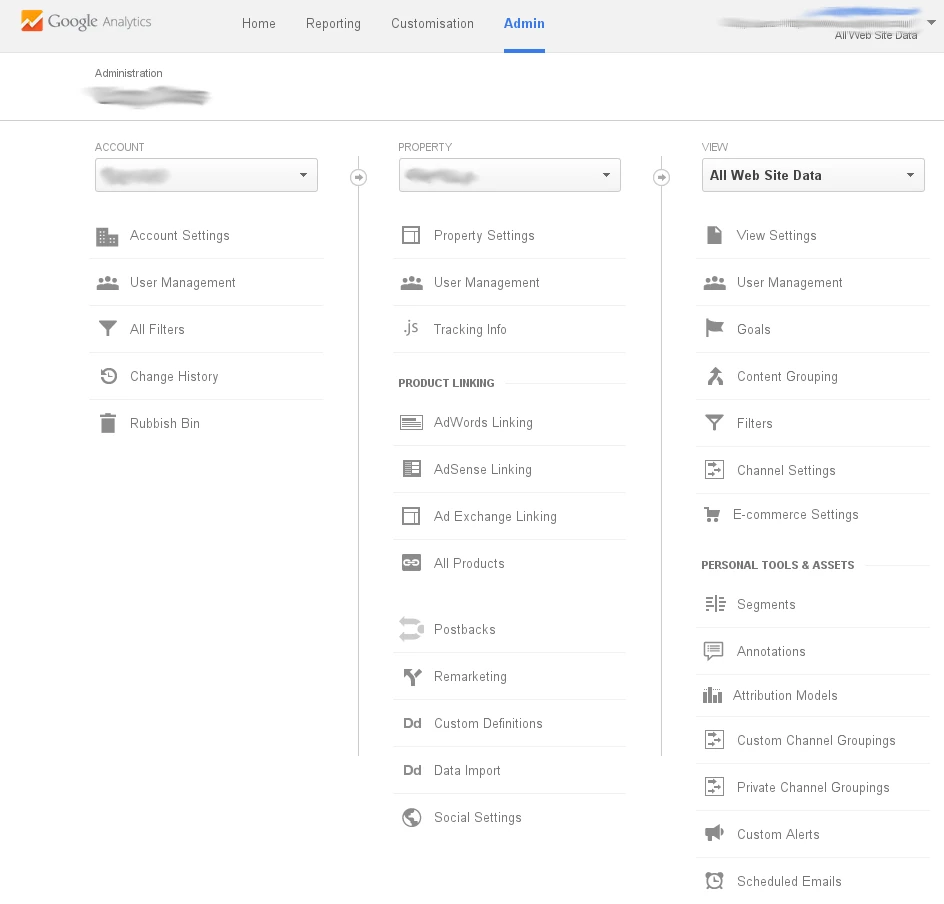
If you wish to review your settings at a later date. From the top menu click on the Admin page.
If you have more than one website added to the account the drop lists at the top of the Account and Property columns offer a list from which to select.
Adding the Tracking Code
Google tracks the visitors to your website with the addition of a small piece of code, the Tracking Code.
If you are using one of the CMSs for your website you may only need to add the ident. This maybe through the CMS settings interface or part of the theme configuration.
Select the domain you wish to configure and click on the Admin page in the menu.
In the middle Property column expand the Tracking Info section and click on Tracking Code. This will reposition the content to show the tracking info.
At the top of the page is the tracking ID. This can often be pasted directly into a CMS website via one of the plugins, or maybe the theme administration. If the code is to be incorporated directly into the appearance of the website copy and paste the content of the tracking code text box.


