Krita, the, digital sketching and painting program for artists, can be used to resize and save images to webp for websites.
Google and SEO websites promote the use of webp as the format to save images in for inclusion on websites.
Krita can be downlaoded from the website: https://krita.org/en/download/
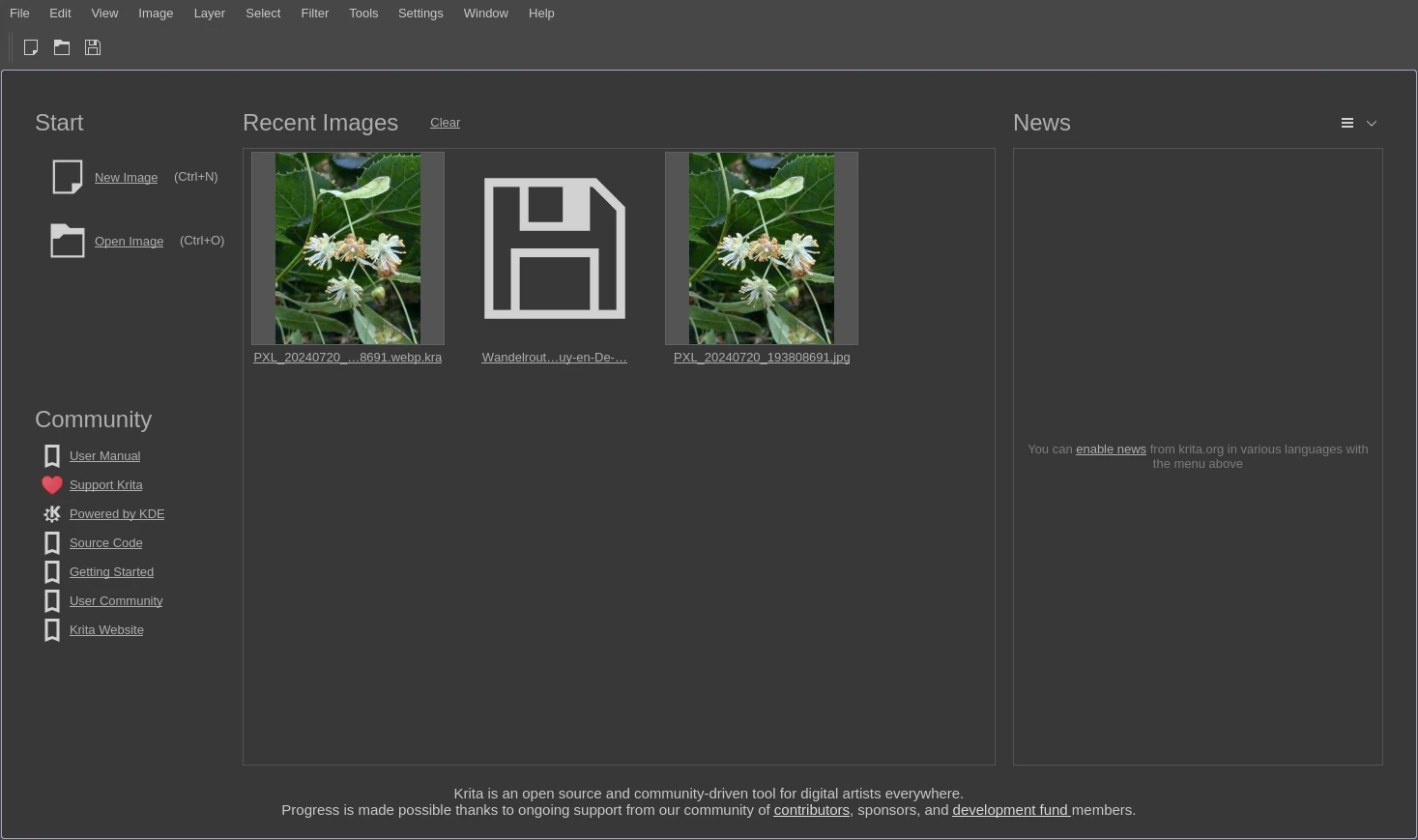
Open Krita to view a screen showing recent images.
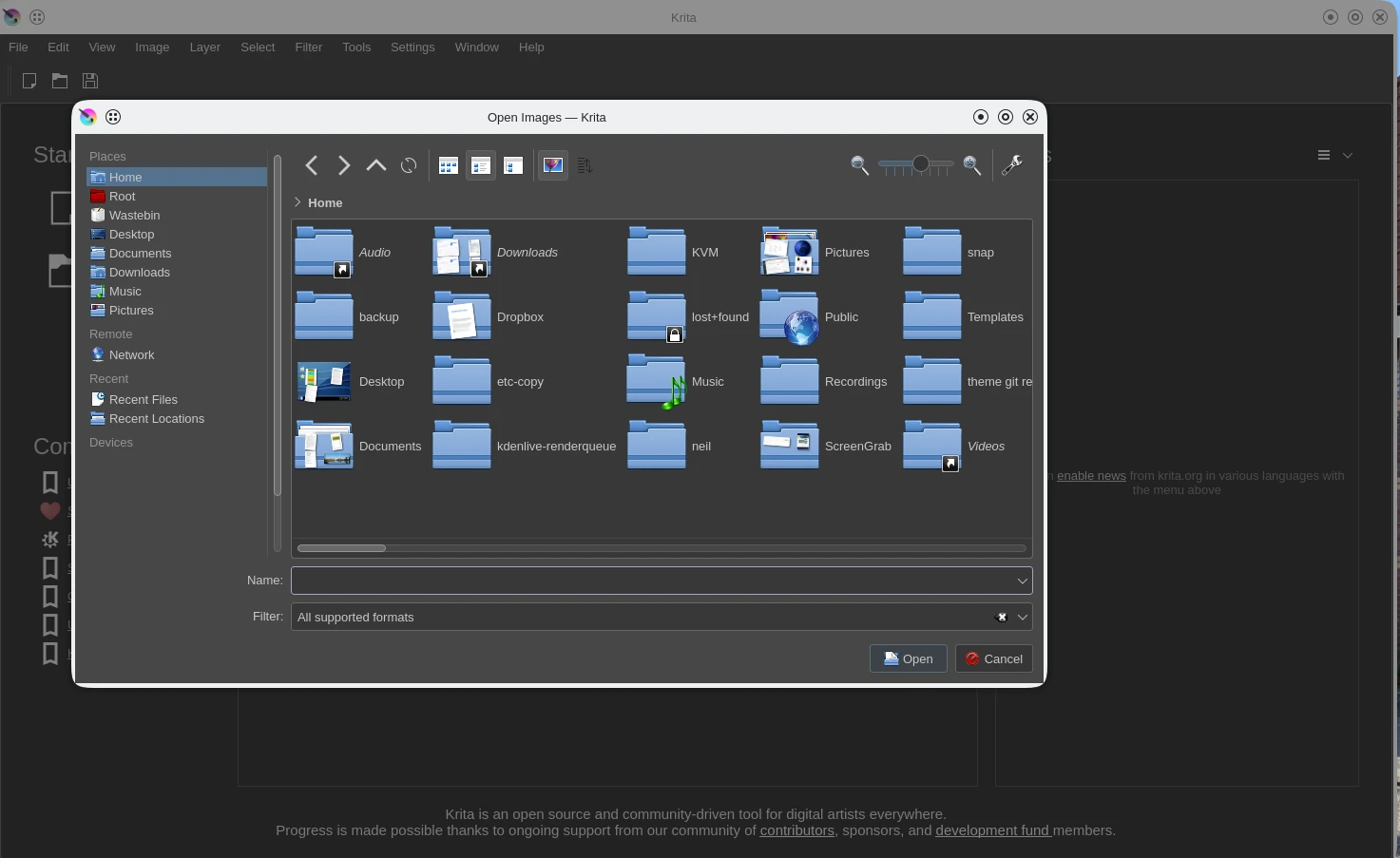
From the left hand menu click on Open Image. Navigate the directories to the image which you wish to edit.

Resize the image to 2500px
Uploading original full size images from a camera or phone to the WordPress media gallery I find that the filename is amended with _scaled. For example his filename: 20240928_162953300-scaled.jpg.
To counter this I resize my images to 2500px on the long edge.
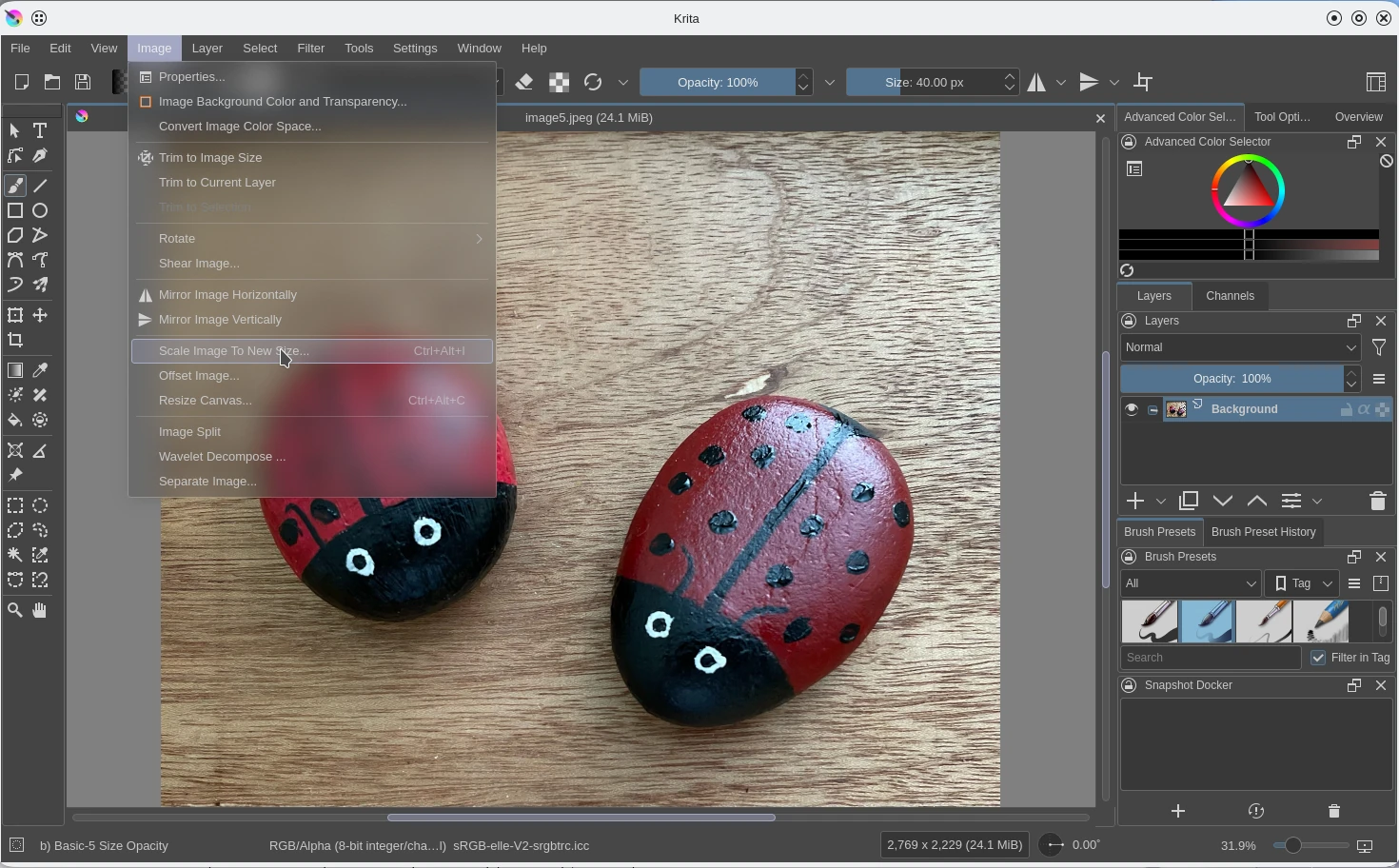
From the top menu click on image, scroll down to select Scale image to new size.

In the popup window set the maximum pixel dimensions width or height, according to the image orientation. As you type the new value the other field will change proportionately. Click on the OK button
Save the image in webp format
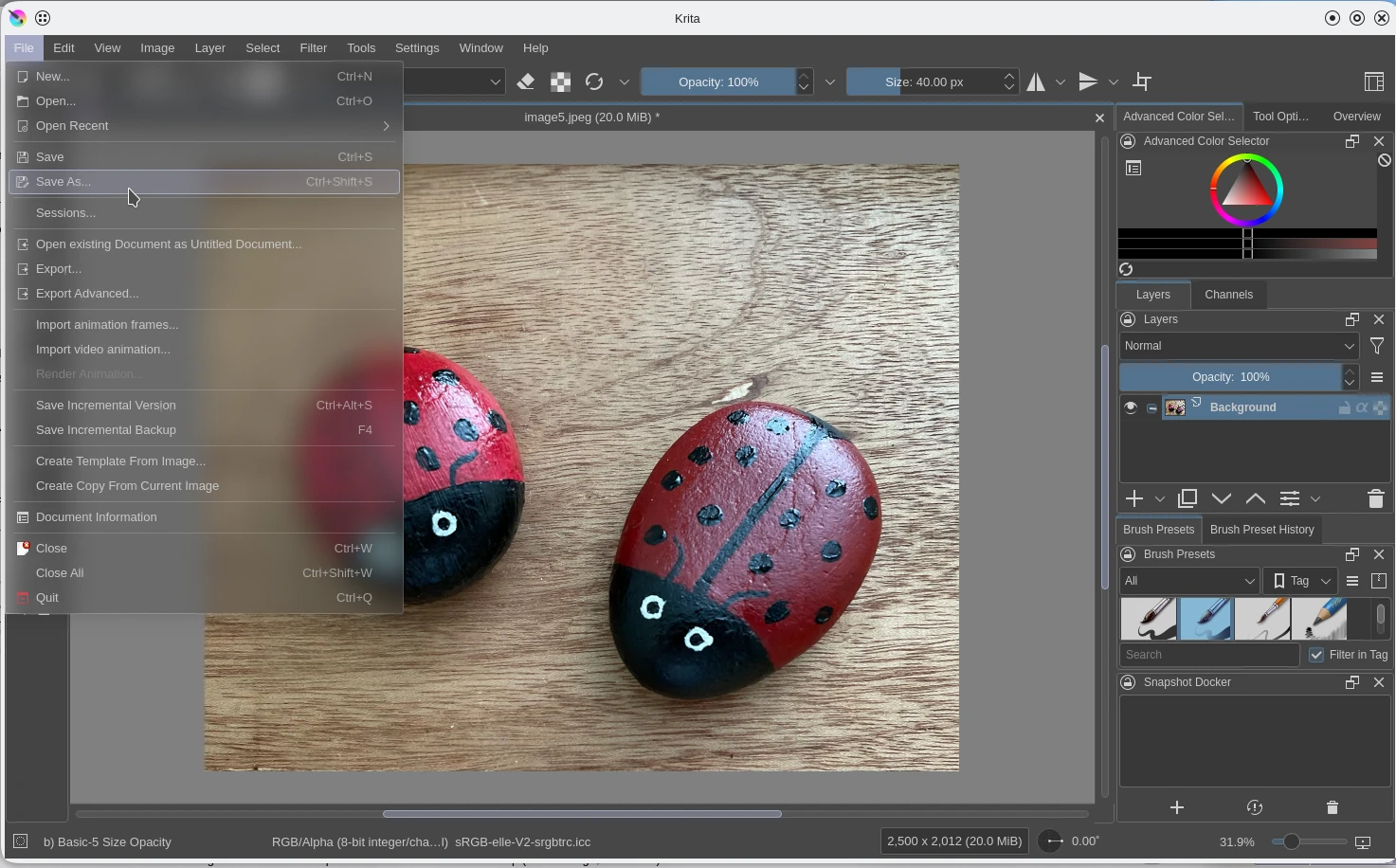
From the top menu click on File and from the drop down menu click on Save as.

The directory offered will be the same as the original image.
Initially the tick box was showing Automatically select filename extension (.jpg). Untick this.
From the list of image filter types select WebP image. The tick box will now show Automatically select filename extension (.webp). Once more tick the box.
Give your image a name. I like my images to reflect their purpose, possibly the blog post and the context within the post. It makes reviewing images on the computer easier. And in the WordPress media library I can better understand the usage of the images. Letters should be lower case and white space replaced with dashes.
Click on the Save button.
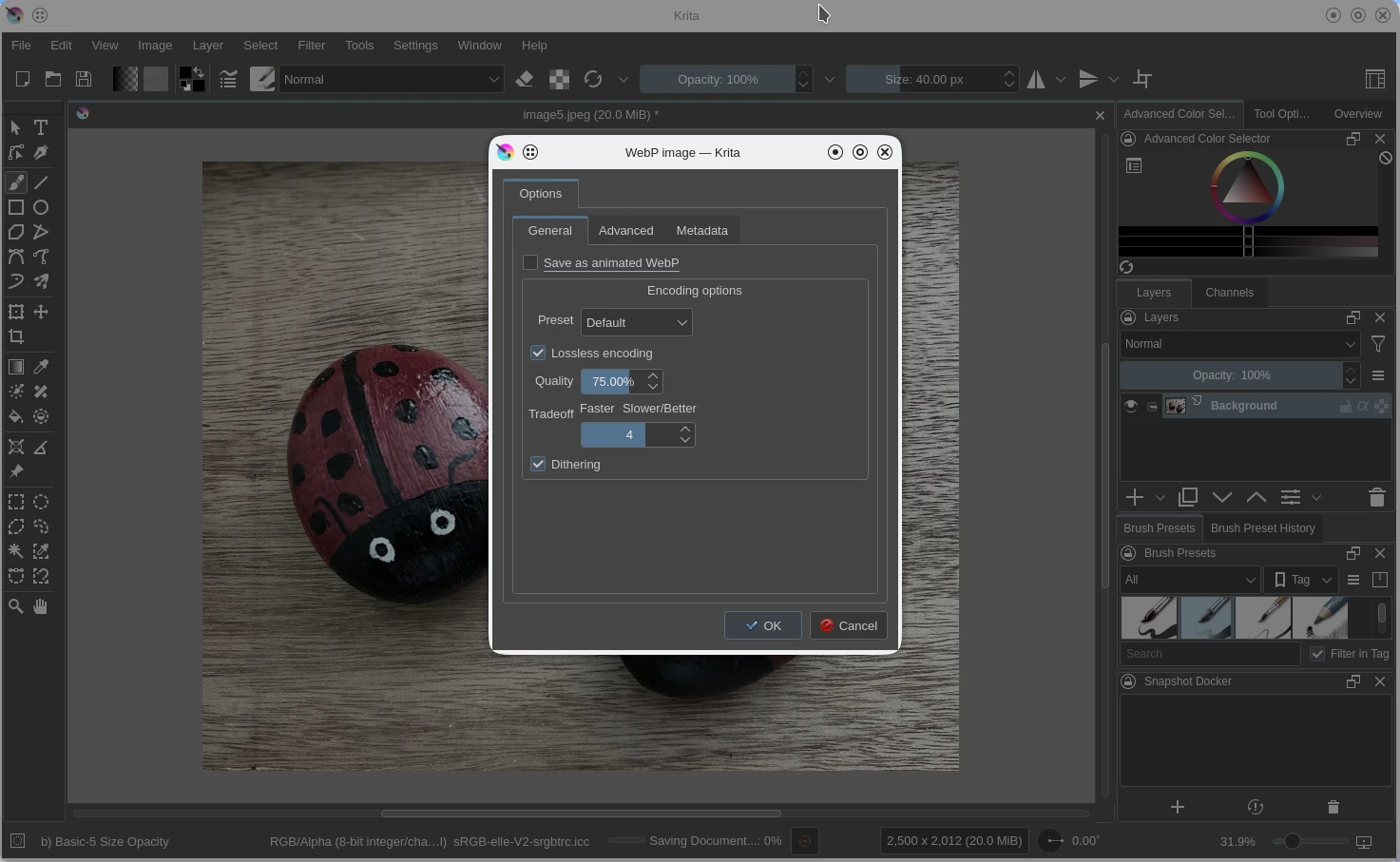
The options presented relate to the quality of the image. There is a trade-off between the best image possible and one of slightly poorer quality. Reducing the quality, maybe to between 80% and 90% will result in an image using less memory. This will travel on the network quicker, helping to make for a quicker web page. You may find it simplest to always use 90%.
Dithering is the default. It can help to prevent colour banding on some images.
Click on the OK button


