The 10web Photo gallery is a plugin which allows multiple galleries to be created. These can be added to post and pages as blocks. There are global presentation settings and the option to customise the options per block installation.
Steps to be taken regards adding (and editing retrospectively) a gallery.
The images for the gallery are saved in the Downloads folder at the root of the hosting space. This is separate to the normal WordPress uploads folders.
With the plugin installed it is to be found in the left hand black menu with its own section titled Photo Gallery with an icon representing the logo used. lick on this to show below a list of menu options. Or hover for a popup menu to make your selection.
Click on the top entry Add Galleries/Images
Either click on one of the existing listed galleries to make changes or to add a new gallery in the top right hand corner is a blue button Add new gallery. Click on this.
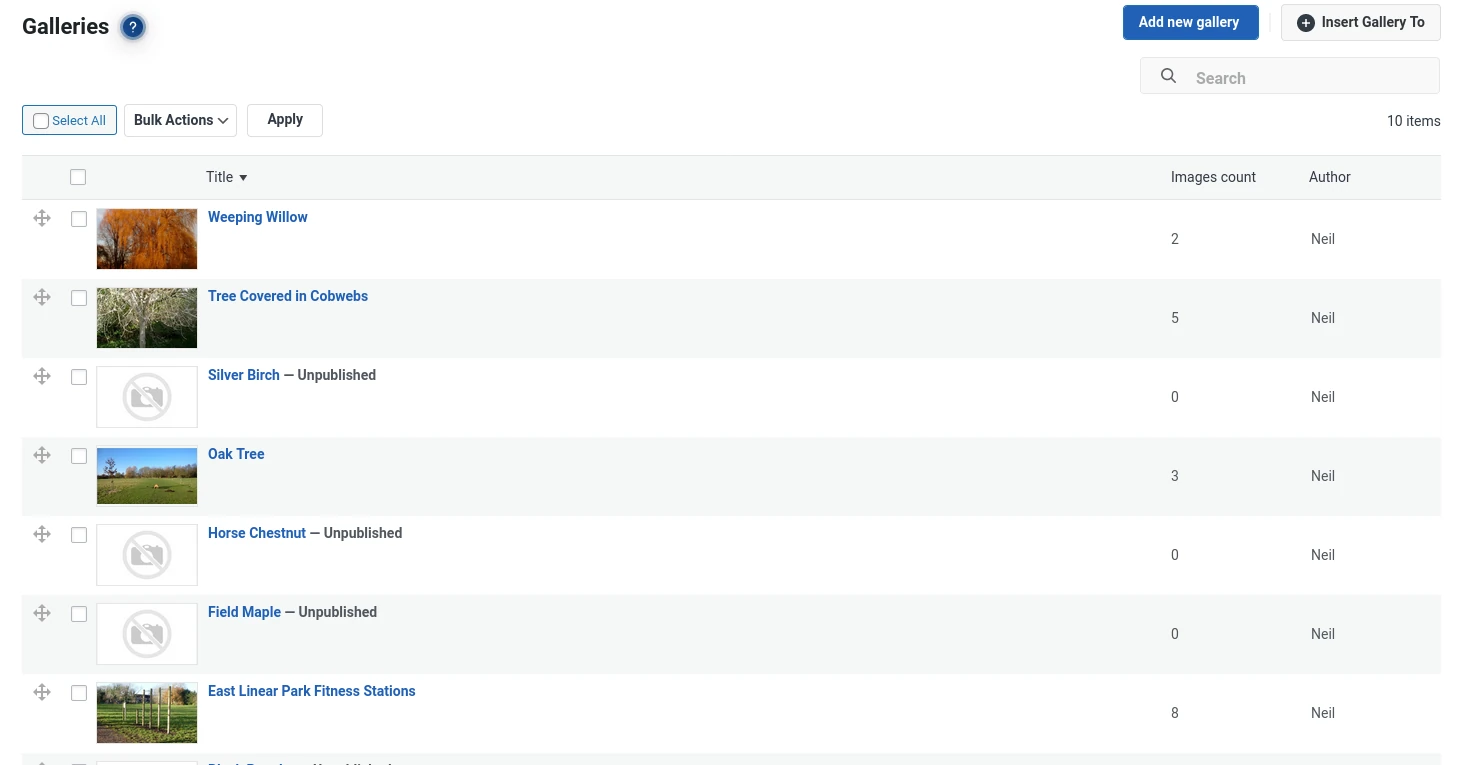
A popup lightbox window presents the details for the new gallery.
Enter a title for the gallery. There are two radio buttons below the Published title. Select the option No.
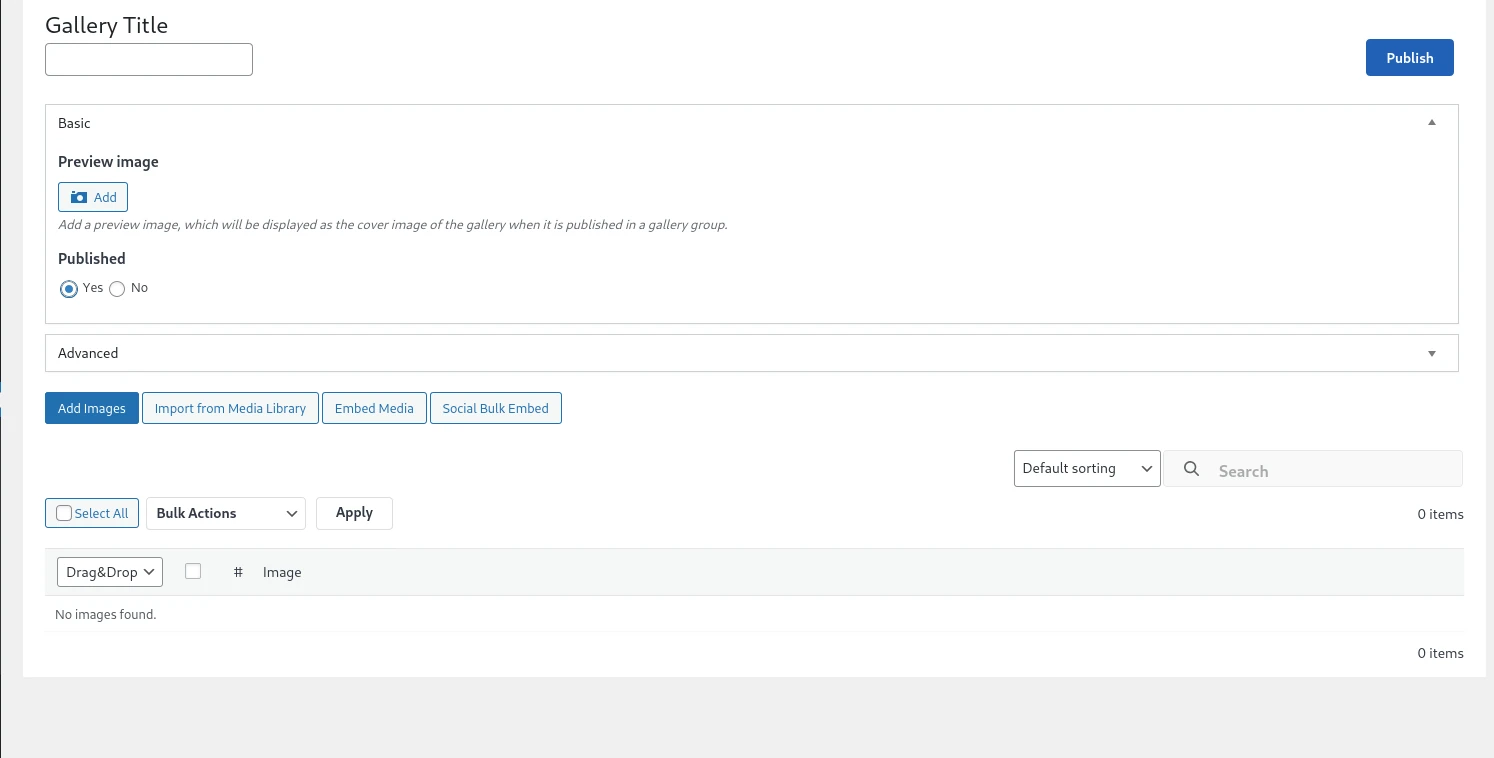
To add a preview image to the gallery click on the Add outline button below the text Preview image.
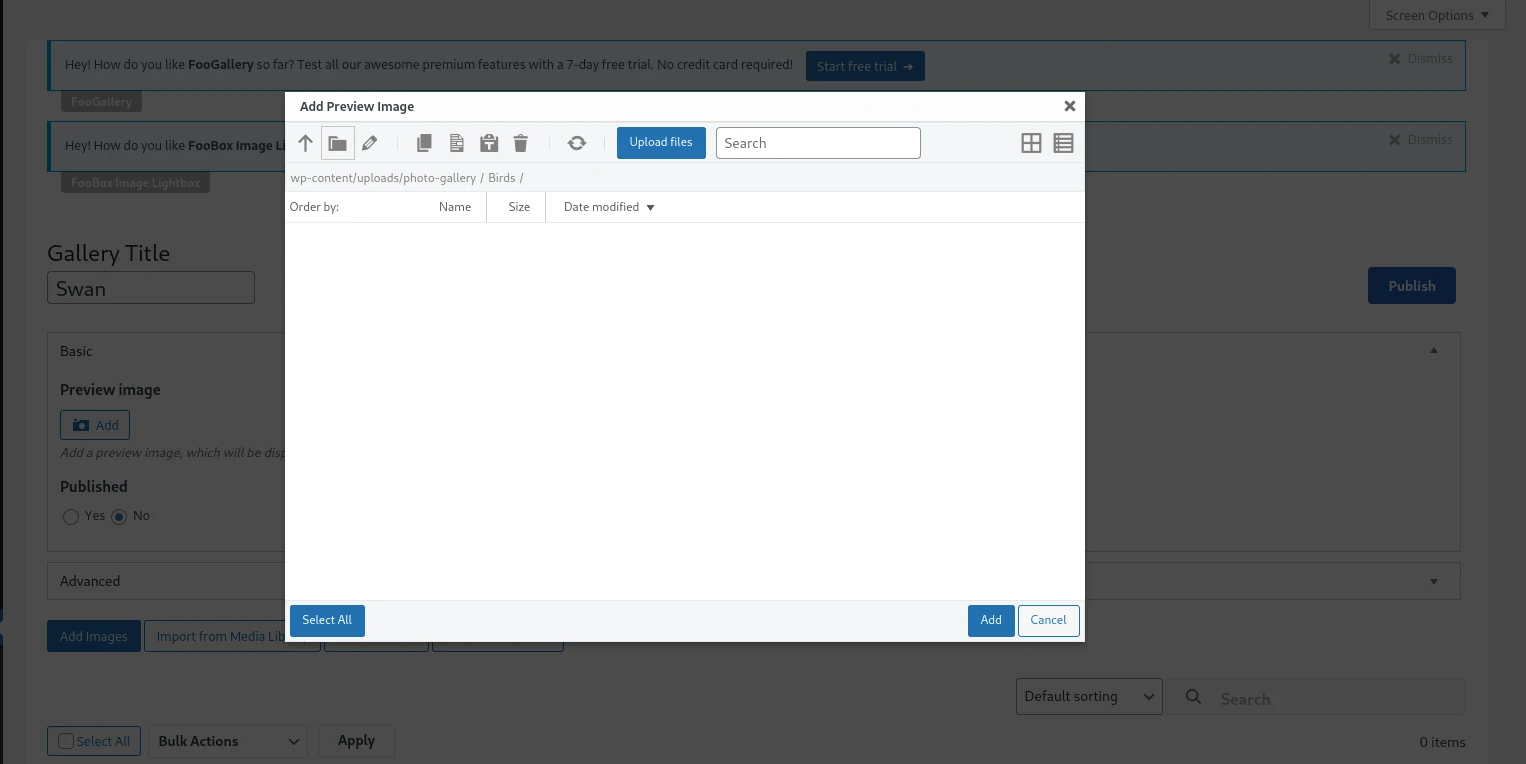
This will show a lightbox with the familiar media library dialogue for adding an image.
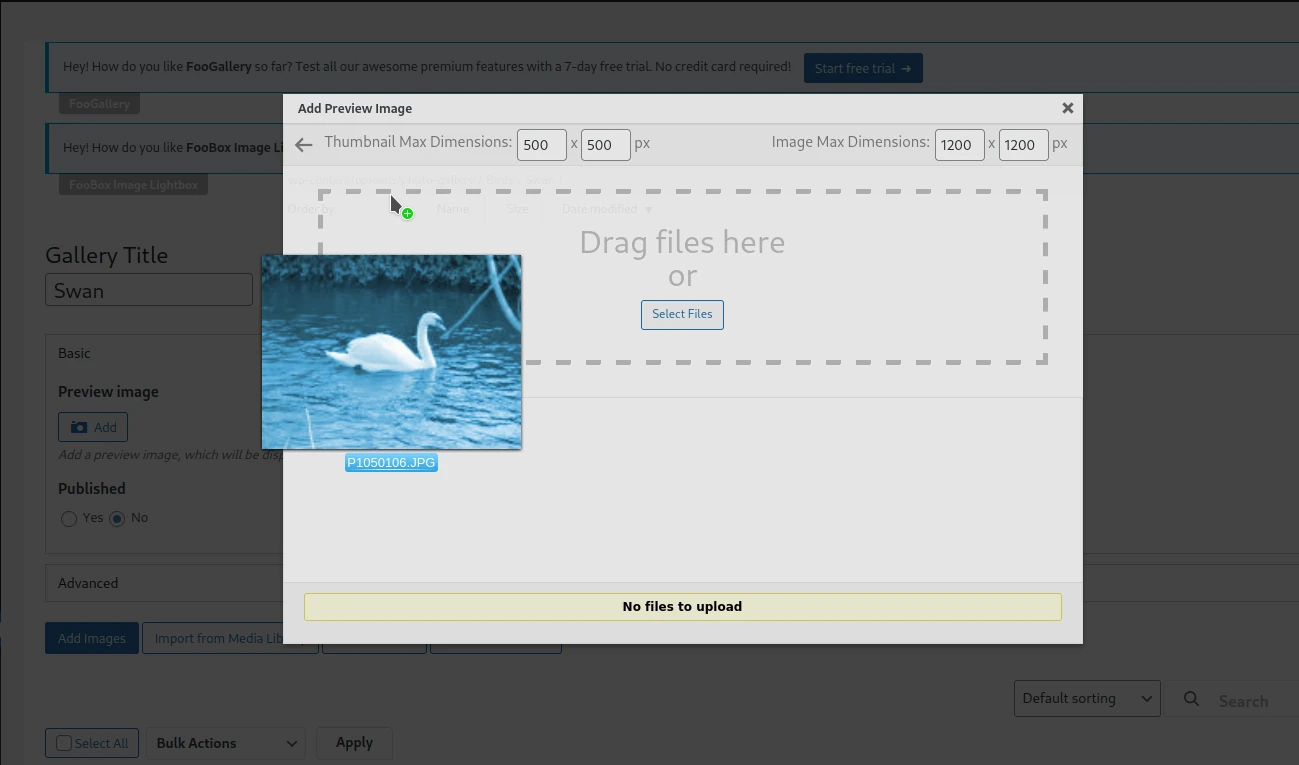
Shown above an image is dragged from a folder on the computer onto the landing area for the added images.
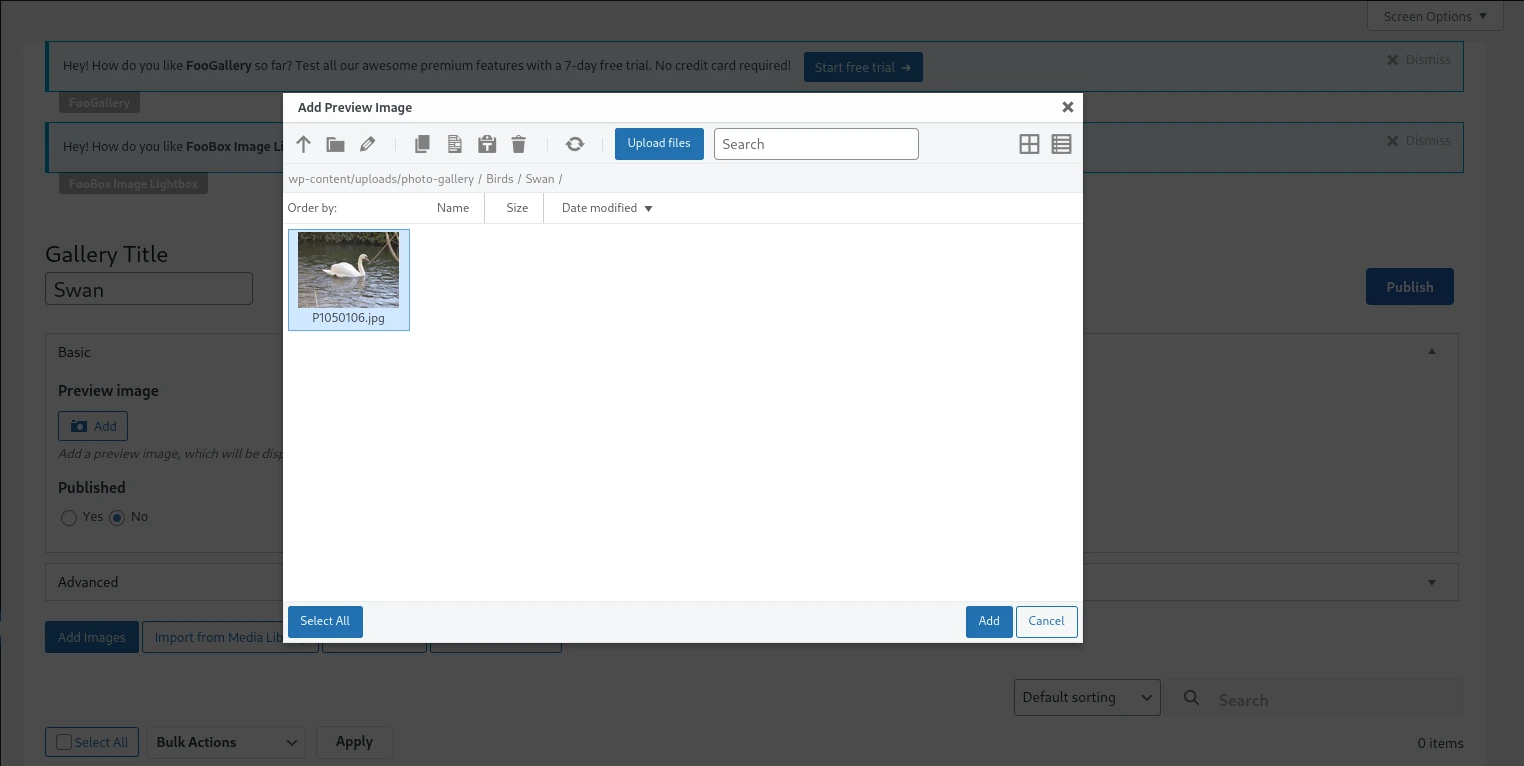
With the image added click on the blue Update button in the top right hand corner.
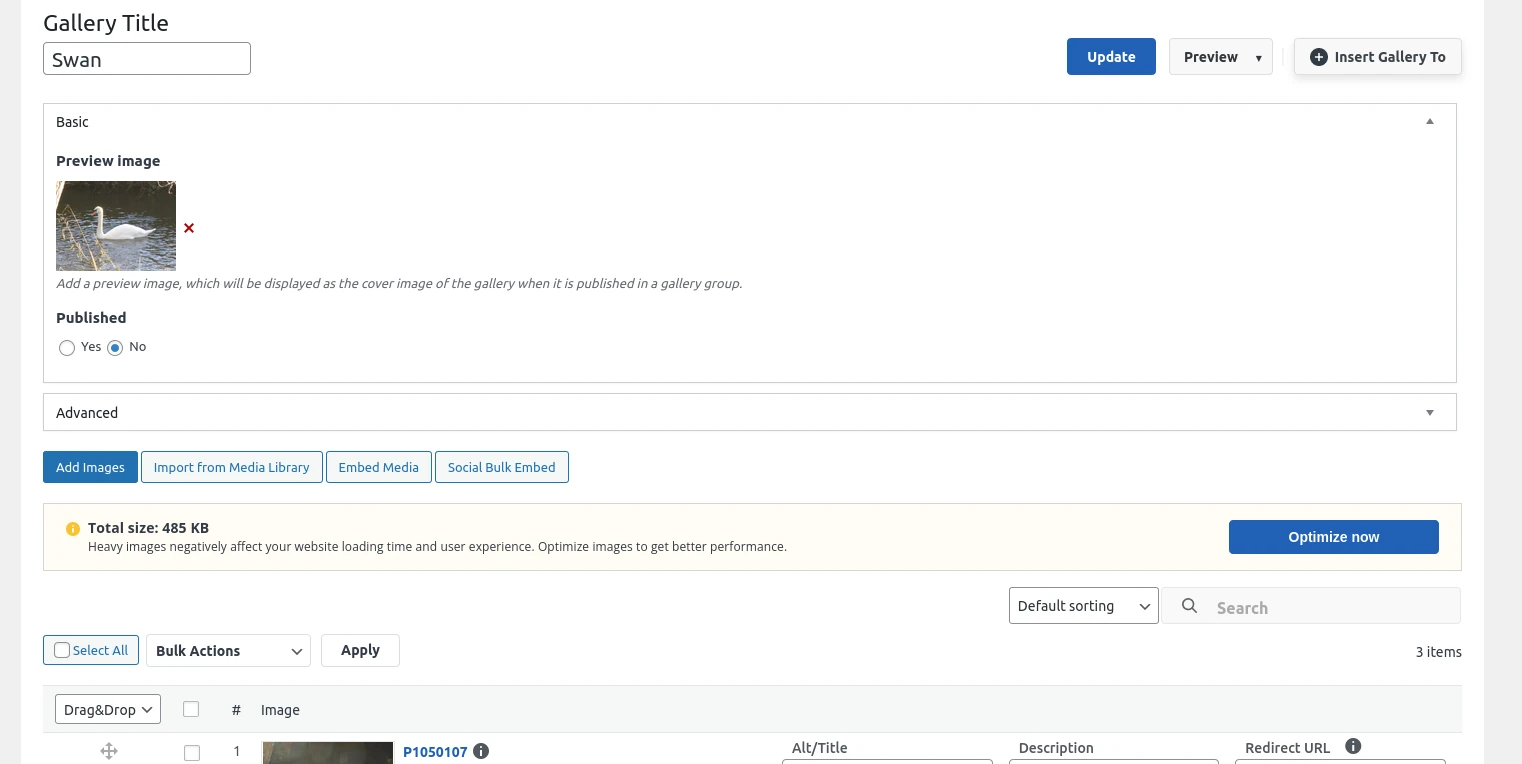
Photo gallery has the option for configuring the Photo Gallery presentation. There are global options and theme style options. with settings for a particular block which has been added on a page or post.
Images can be uploaded or taken from the exiting ones within the media library. I prefer to add images within the gallery plugin.


