Creating a new email account in the Thunderbird email client program.
Before starting have the mail account details to hand.
It is assumed that the mail account to be added has already been added on the mail server. It is also better to wait half an hour to an hour to ensure that the addition of the account to the mail server has propagated.
Similarly if you find you have to reset the account password it is better to wait half an hour to an hour to ensure that this change has propagated.

The image above is from a new installation of Thunderbird. The option to set up an existing email account was given as a part of opening the programme.
To add a new email account to an established Thunderbird installation I like to right click on one of the existing accounts and select Settings from the popup window. At the bottom of the list on the left of the already configured accounts and their configuration options is a drop down titled Account Actions. click on this and select Add Mail Account.
A popup window, as shown above is, visible. Complete the details for your new account and click on continue.

Shown above is a pop up window with the email address and password added. I’ve also given the account a name. This can be a simple reference, such as Support, or longer, perhaps the name of the account holder and maybe the company or organisation.
If you chose to click on Done at this point the following message is shown:

To further edit the mailbox configuration options click on the button Change Settings.
The next screen is Thunderbird’s summary of the connection details. Thunderbird will try to complete the connection details. I have found this to often be mostly accurate but with some editing required to suit my choices.

In this example it has attempted to complete the required details and failed with its testing. The configuration options need tweaking.
Edit the details. You can either amend the server hostnames with the details related to your domain name. In this instance I’ve added IMAP and SMTP.
Click on Done to proceed.

If your email is hosted on a shared mail server then you may find that using the direct reference of the mail server provides a reliable connection.
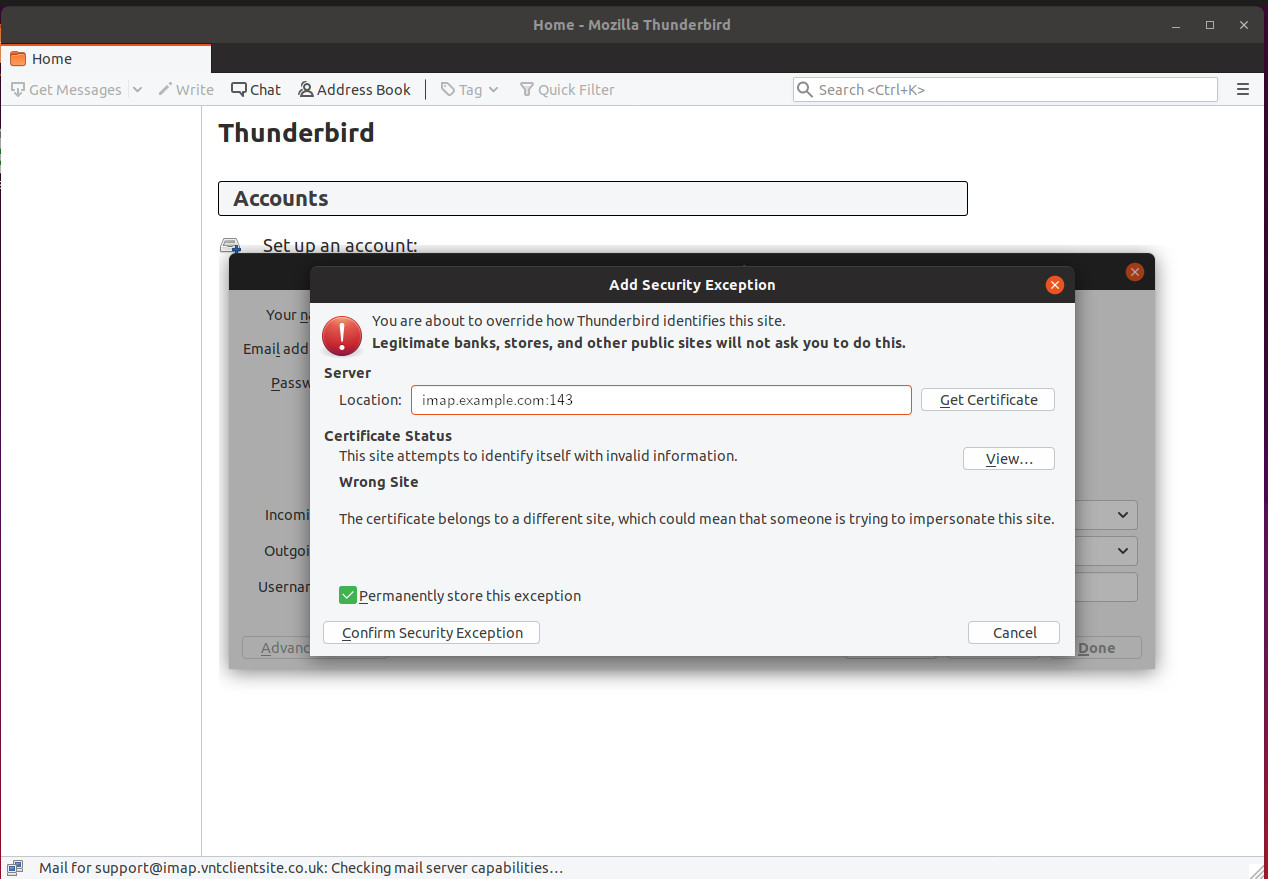
In this example configuration the mailbox is on a shared mail server, hosting a number of different domains. Its SSL certificate is related to the domain of the server, not our domain. For this reason the given certificate doesn’t match.
You can view the certificate to be sure its what you expect. Once happy click on the Confirm Security Exception button.
The summary window is shown once more whilst the password is checked.
I found that I needed to set the username
If you have only just created the account you may need to wait a while, perhaps about 30 minutes to an hour whilst the infrastructure catches up with your actions.
After waiting a while click on Re-test.

Once the settings are confirmed the Done button will be active. Click on this to finish


