In 2019 WordPress introduced the Gutenberg editor as its default content editor. This editor formulates content as a series of self contained blocks that may be edited, formatted, moved (etc) as a complete block. This article discusses some of the changes in page presentation and editing compared to the traditional WordPress editor.
Traditional website content editors used a single editor, with icons at the top for features.

An example of the old content editor is shown above.
With the new editor the content associated with the individual icons are taken out into their own individual blocks. So for example paragraphs of text and headings are now blocks on their own row. Frequently used blocks include:
- paragraph
- lists
- headings
- images
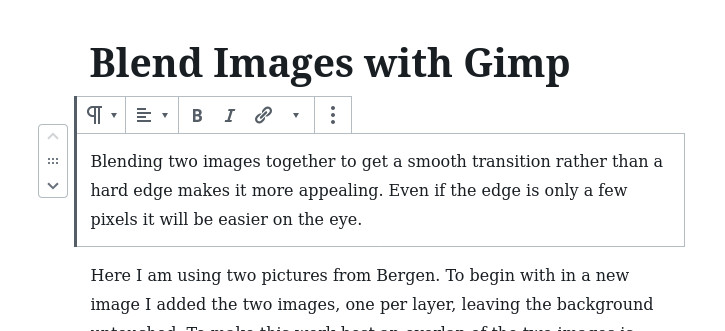
In the image above two paragraphs are visible. The cursor has been placed within the first paragraph causing its toolbar of possible actions to be shown above.
Paragraphs of text flow naturally, clicking on the return key finishes one paragraph block and creates a new one.
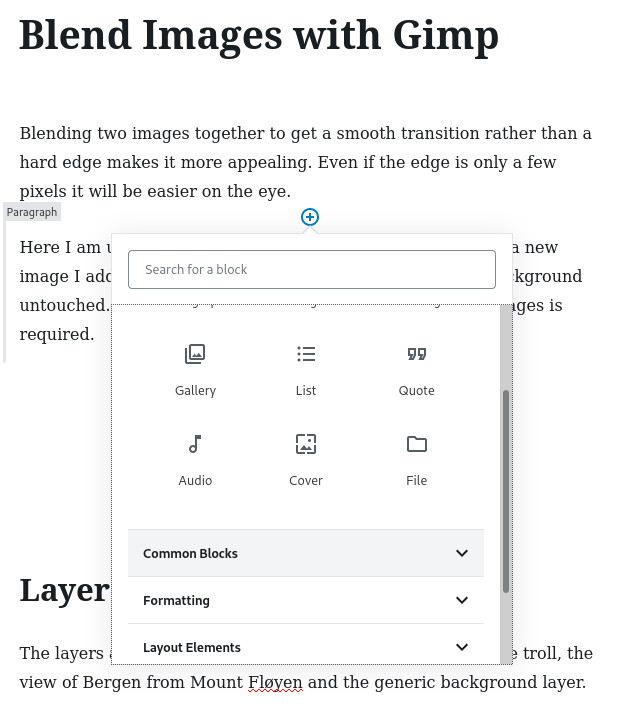
If you wish to add other content types hover above or below the block where you wish to add. Or click on the black ringed plus right at the end on the left.
Click on the circled plus to show a popup with the optional blocks for adding. Scroll though the sections to find the element which you wish to add.
Shortcodes, associated with plugins, can still be added as previously. Although some plugins are implementing their own interactive interface.
For any added block click within the row to show a short icon bar above with options to tailor the content.
For a new post or page simply start typing in the content area. This will be adopted as a paragraph block.
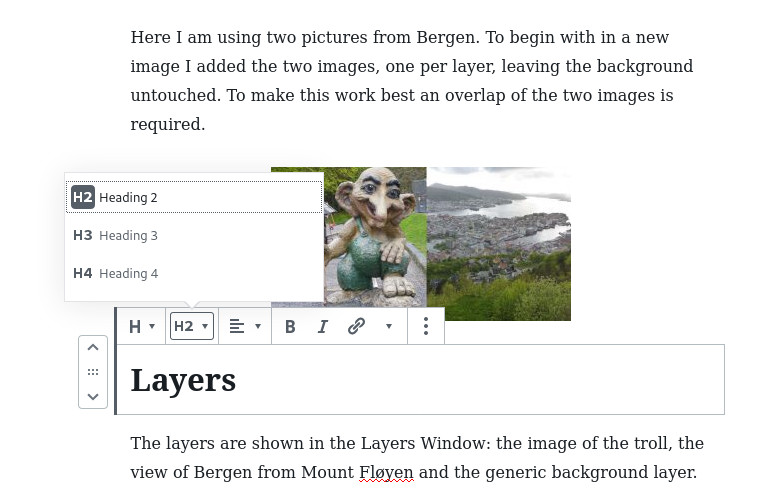
For some elements their type can be changed. Examples of this are converting a paragraph into a heading. To make this change click within the block. If available the first icon in the short menu above will provide a drop down list of available conversions.


