WordPress allows menus to be configured, named and assigned to an area on the theme.
Navigate to the Appearance>Menu page to manage the menu(s) in use on the website.
The customised menus provide a more controlled presentation than the default. allowing the order and those pages viewed to readily be configured.
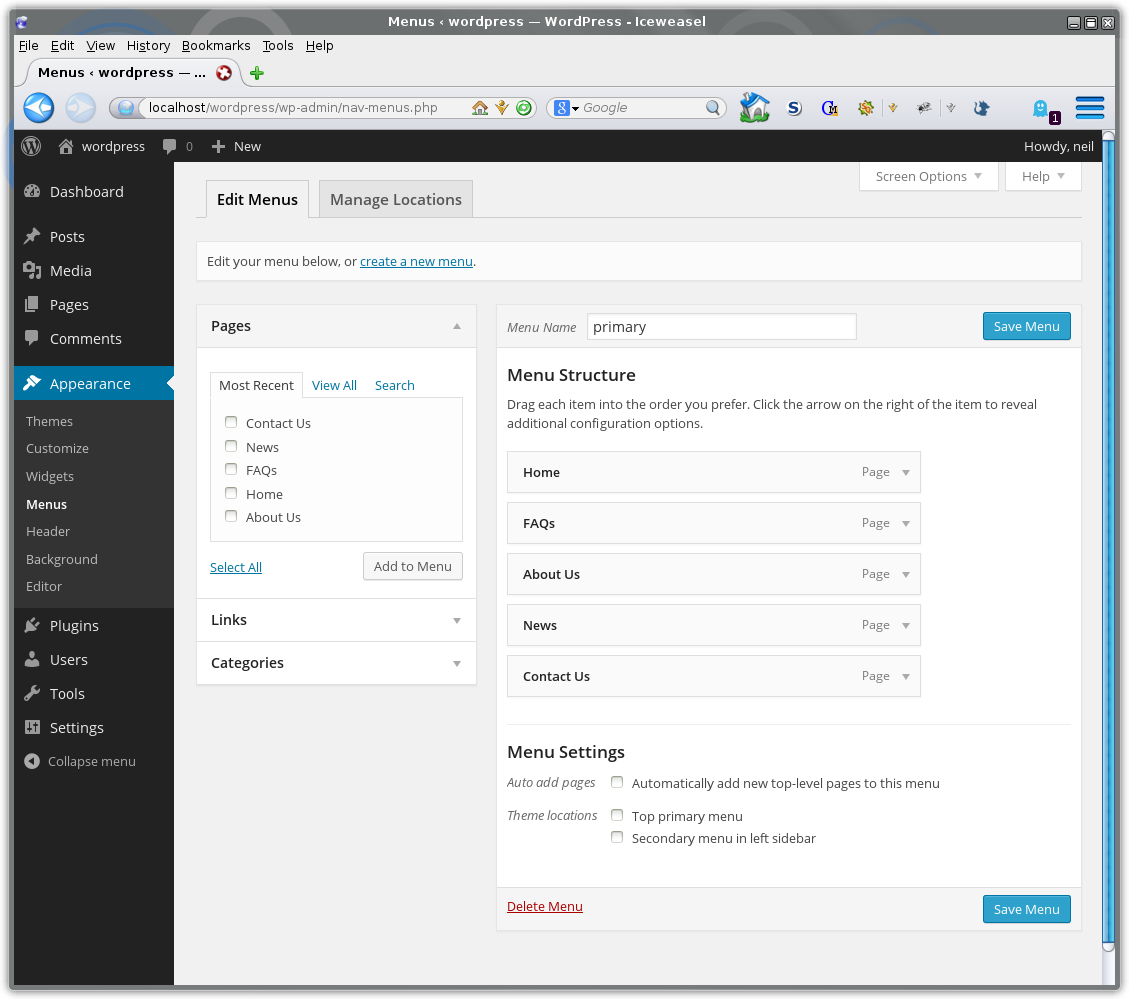
By default there is no menu configured newly published pages are shown in the menu by default. The structure is defined by the association of pages to a parent. the sequence in which pages are shown is governed by the use of the By default there is no menu configured setting.
At the top of the page are tabs for Edit Menus and Manage Locations.
Edit Menus
On the left are the resources which may be added to the menu.
By default the resources include pages, links and categories.
To the right the main view comprises the menu structure and menu settings.
Create a New Menu
With no menus configured much of the menu options are greyed-out.
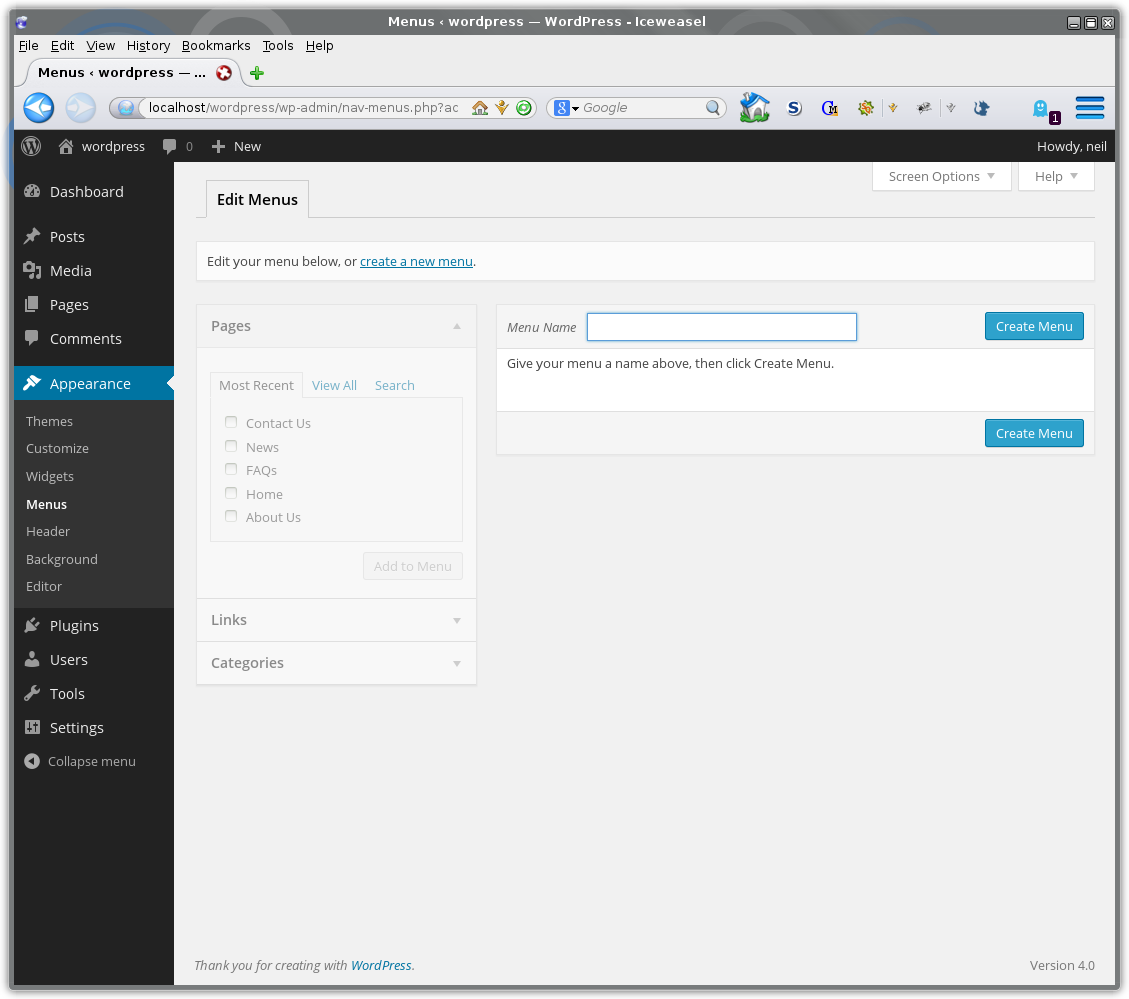
Start by adding a Menu Name, for example “Primary” and click on Create Menu.
WordPress themes have named menu locations. Often supporting more than one location.
Click on the tab Manage Locations to assign the newly created menu to one of the available menu locations.
The Manage Locations tab shows a table of theme locations and assigned menus. Choose the location and select the menu from the drop down list alongside. Click on Save Changes.
Add New Menu Page
To add a new page to the existing menu select it in the Pages list on the left and click on Add to Menu.
Other entry types can also be added. Expand the entry type to show the options available. Select an item or complete the form fields before copying it across to the Menu Structure.
Menu Structure
To modify the menu structure drag an item up or down in the list.
To create a sub-menu drag menu items to the left below the proposed parent item. The dashed boarder highlighting the page location will be shown indented, signifying the parent-child sub-menu relationship.
Expand a menu item to view the actions available, for example to change the name of to delete.
To ensure that the page structure matches the menu, edit the page and set the parent correctly.
I like to ensure that the tick box selection Automatically add new top-level pages to this menu is unticked. This puts me in control of adding pages to the menu. I’ve seen menus which have run away, with lots of top level pages because this option was ticked.
Manage Locations
Click on this tab to assign created menus to menu locations. Menu locations are a feature of the active theme.
Once a theme has been chosen and the menus configured there is less need to visit this tab to make changes.


