The WordPress admin view presents a top menu of notable actions and customisations and a left menu for the addition editing and configuration of the installed features of the website.
Having logged into your new WordPress website where do you start?
The successful WordPress login will take you to an existing admin page, or if following the default login, to the dashboard.
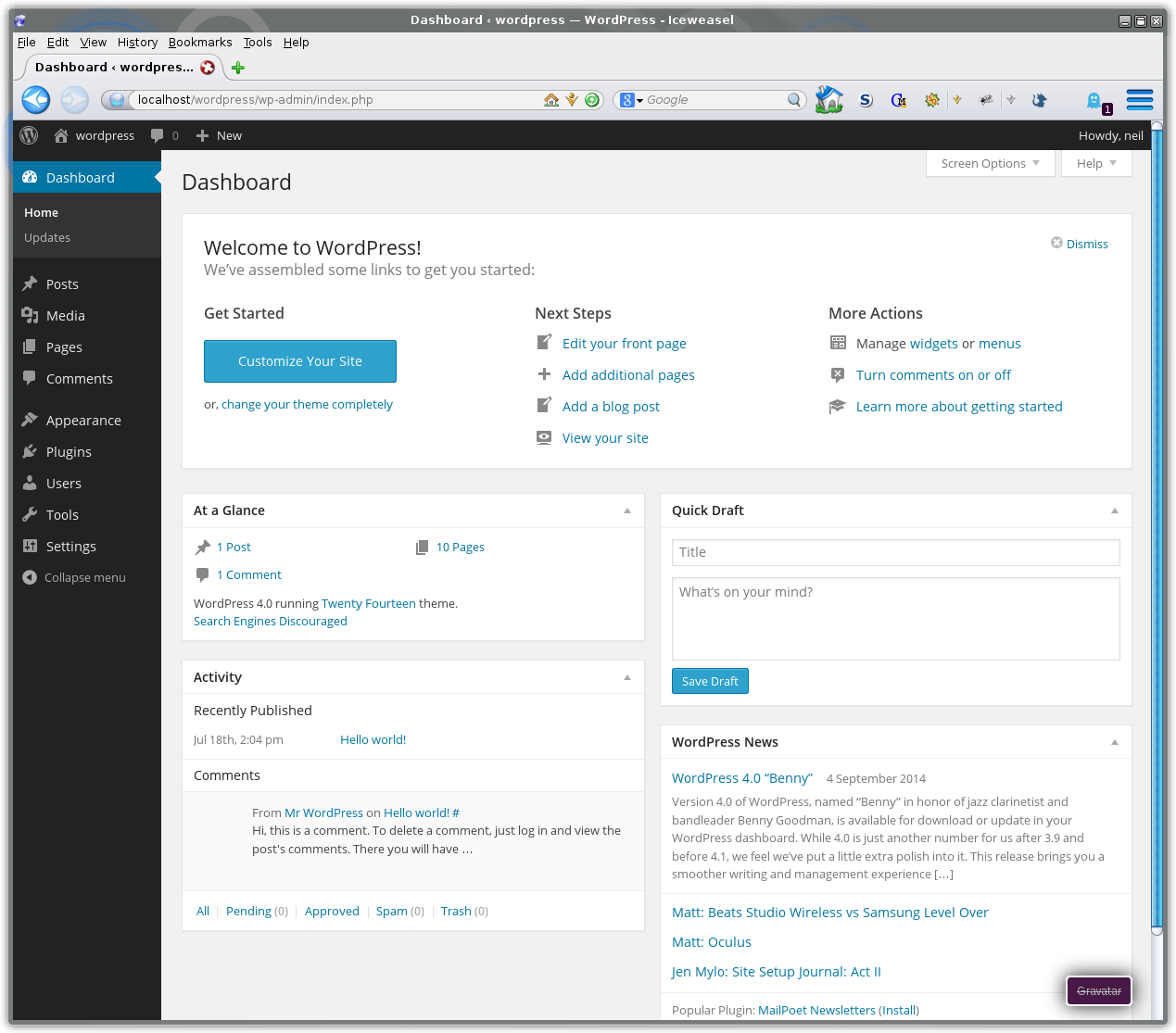
The WordPress admin dashboard, as shown above includes a main content area and two menus – left and top.
The dashboard offers a number of summaries in the main content area. These include recent activities, WordPress news (good to keep watch on the development of new releases) and a list of popular actions.
On the left hand side of the admin screen is a menu of actions available. Across the top of the screen are some quick short cuts, grouped to the left and right of the page.
Top Menu Bar
The top menu bar shows the website title to the left end and then the following actions:
- A speech bubble for comments waiting to be moderated. I usually disable comments for new websites.
- + New, with sub menus for the creation of new things.
- Some further links, which will be dependant upon the plug-ins installed. May not exist.
- At the right end a reference to your login,
- A hanging tab for screen options and help
Hovering over the website title will show a drop down to Visit Site. When editing a WordPress website I like to have a second browser window open with the view on the website. I can then check the content changes which I have made. Right click on the view site link and select to open in either a new window or tab.
Not all browsers render websites the same. The current browser share is available from the Statcounter website using a nice graphic interface. Your own website statistics will highlight which browsers are favoured. Different site audience and geographic location can affect the relationship between the browsers used.
Speech Bubble
WordPress can be configured such that when a comment is made against a page or post it is held awaiting moderation. The speech bubble is used to indicate whether action is required. Adding comments to a website can be a form of promotion, either to the website administrator or if they are published directly to the wider world. It can be overwhelming keeping up to date with moderating comments and filtering out the junk ones. For this reason I prefer to turn off the option to enable comments to be made.
New
A collection of links to add new items, the most popular items are shown here by default. Some plug-ins may also add an entry. The default items are: post, media, link, page and user.
View Post
If you are editing a post then an option will appear in the menu bar, providing a link to the post. This will enable you to appreciate the content and presentation of the post. Some plug-ins also support this provision. Whilst WordPress will warn you against moving away from a post with unsaved changes you may prefer to right click on the View Post link to open it in a new browser tab.
Other Items
Dependant upon the plug-ins which have been added further entries may be available, together with appropriate sub menus of options associated with the plug-in. It may be a repetition of the items entries on the left panel, or a sub-set of the more important ones.
Howdy …
Clicking on this link will take you to your user details. On this page you will be able to edit the details recorded by the website against you. By default this is limited, including name, email and chat interfaces, a biography summary and the option to change your password.
Screen Options
The visible sections available when editing a page or post are maintained by clicking on the Screen Options tab. Recent Drafts is a good option to add. Note that the options selectable are related to the activity. For example different options if you are viewing all posts as opposed to editing a single post.
Help
This tab provides a quick summary with links to the full documentation at the WordPress website.
Left Menu Panel
The left menu panel is divided into sections. Plug-ins can also add their own menu options, either as sub items on existing entries, or within the menu flow.
Dashboard
A couple of simple links under this section. One to return to the Dashboard home and the other to check the updates for the website.
Updates
Your WordPress website communicates with the main WordPress website to determine whether themes, plug-ins and the underlying WordPress code have been updated
From this page it is easy to implement the outstanding updates. If automated updates are enabled the underlying core WordPress framework will be updated when a security version is released.it is automated.
Posts

Posts allow news and blogs to be added to the WordPress website.
Click on the Posts menu link to access the posts. The table listing may be filtered according to the status of the post, the assigned category and the words according to a search box.
This table presentation is common to many of the WordPress listings.
Media
The media page shows a filtered gallery of images, documents and videos uploaded to the website.
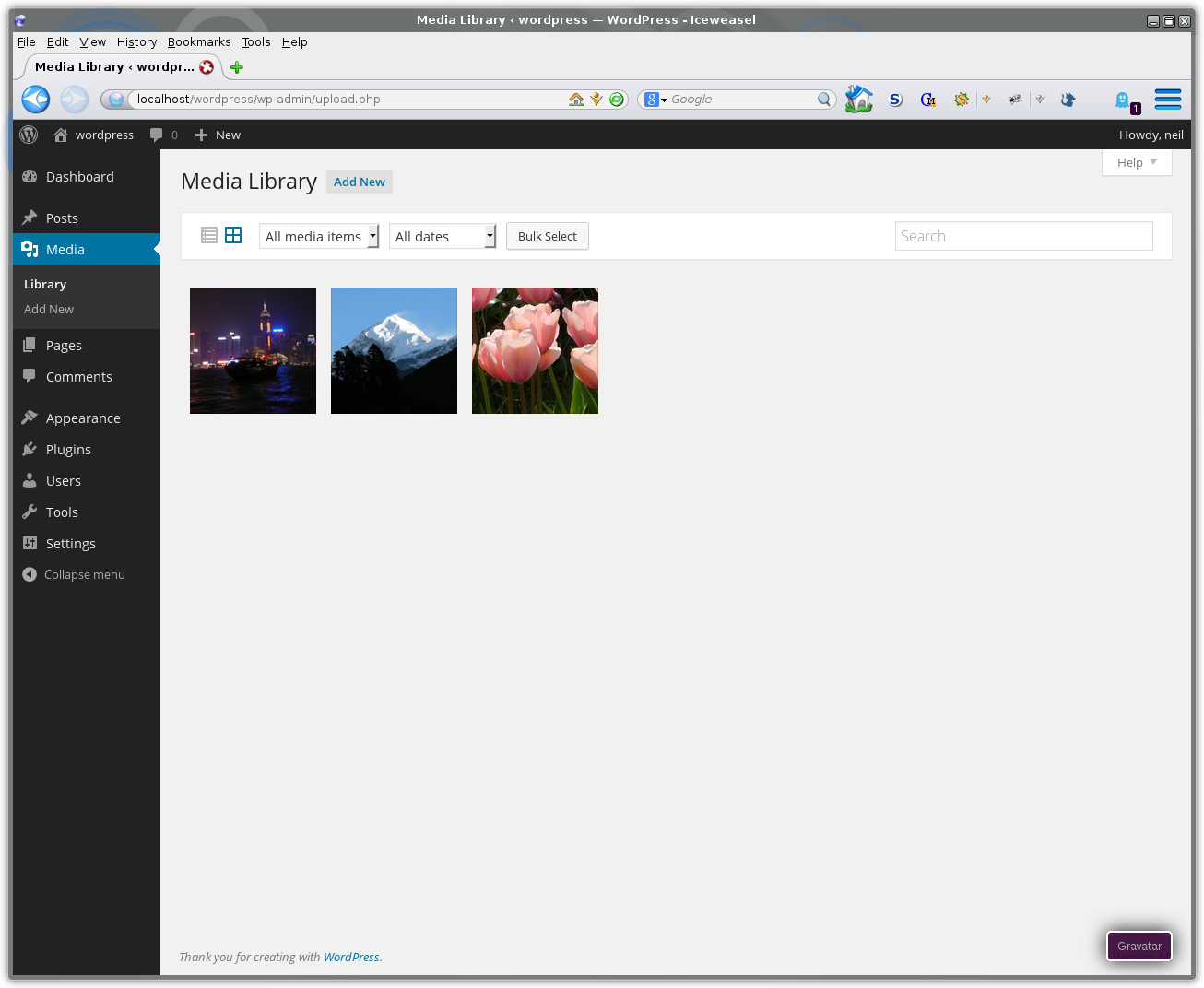
Clicking on one of the entries opens a popup window enabling the descriptive details to be administered. At the minimum an entry for the Title and Alt Text should be entered.
At the top of the page is a link to Add Media entries. This adds a dialogue section above the gallery of entries.
To add a new entry either drag the file onto the page or click on Select Files and navigate to find the files to be uploaded. There is a file size restriction.
Once files have been uploaded I like to add the default text to the Alt Text and Title fields.
Links
A table of links, assigned to a number of specified categories.
Links can be presented in the sidebar as a list using the Links Widget.
Pages
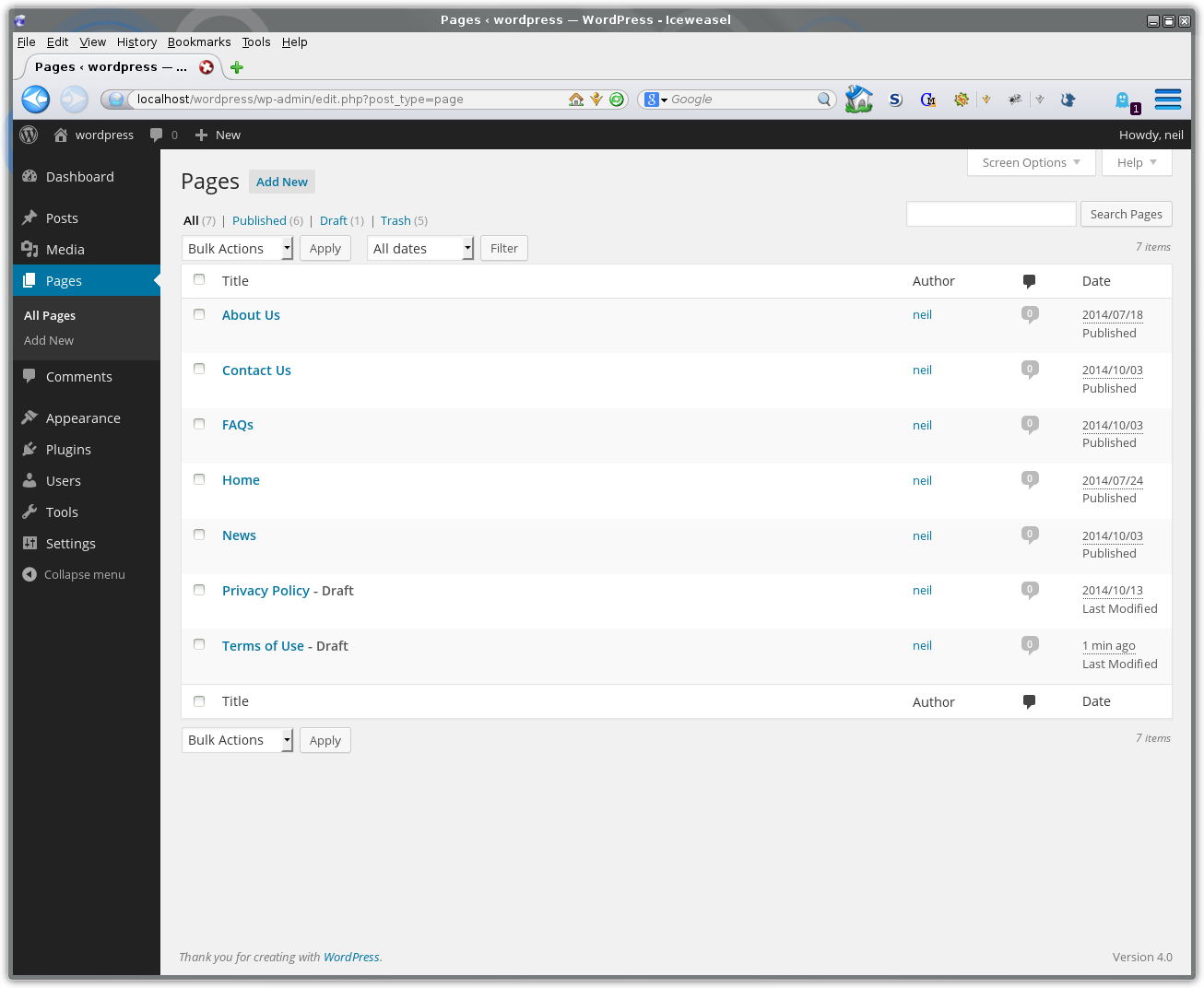
The Pages admin shows a table of pages, showing their publish state and author.
Editing a page offers:
- Title textbox (note Permalink below is the page URL)
- Content editor
- Published state of the page
- Page Attributes
- Featured Image – this maybe shown on the page or in a list of pages, dependant upon the construction of the website theme.
Note
WordPress themes support named menu locations. The created menus can incorporate pages dynamically or be manually constructed. If your new page isn’t listed look to the menu configuration.
Comments
This will be relevant if you have enabled comments on your website. Also a good place to check in case one has slipped through.
To prevent spam entries I recommend moderating comments, as a minimum. Dependant upon your website you may wish to disallow comments.
Appearance
WordPress uses themes to govern how the website will look. If someone has designed the WordPress website for you it is better to follow their guidance regards the appearance pages.
A new theme can be added from the WordPress repository or by following an upload process.
Other Appearance menu items are:
Menu
The menu option may be used to define which pages are visible in the menu, or menu areas (more than one menu can be used on a page).
On this page the menu to be edited can be selected and items added and removed. This allows a main menu of only top level items to be used, for example at the top of the page and a second sub-menu, assuming the theme supports this, at the left side of the page.
Widgets
Widgets provide the additional features around the website page. Dependant upon your theme a number of widget areas will be available. Note that all areas are indicated, but not every area will be available on every page.
Plugins
Plugins provide additional features to the core WordPress framework.
The plugins are listed in a table, illustrating whether enabled or deactivated.

A plugin is a package to provide a feature to WordPress. Common additional features are:
- contact form
- SEO
- social media link
- eCommerce
- FAQ
- testimonials
To add a new plugin click on Add New at the top of the page. The plugin may be sourced either form the WordPress repositories or from another source and uploaded.
Note
As with any program consider the reputation of the item and its author. There are plugins which actively report back to their owner. Is the plugin current and are updates timely in response to security alerts and WordPress framework changes.
Users
A list of users either added by the website administrators or, if permitted, by sign-up.

If you enable users to create accounts on the website ensure that you monitor their presence, checking that the signup is legitimate, not purely as a means for self promotion or to test site permissions.
Users can be assigned a number of roles governing the actions permitted, Plugins exist to extend this. This makes guessing their access details more difficult – two items as opposed to one.
Note
I would recommend encouraging admin uses to create accounts with a username which is different to their display name.
Settings
Some plug-ins will add their own entry to the settings sub-menu.
The main settings pages to be reviewed are:
- General
- Writing
- Reading
- Discussion
- Permalinks
These pages govern the general presentation of the website, the format of the pages and commenting.


