Talking to a customer recently I was asked the question:
How do I set the font size?
Reviewing the WordPress editor where is the font size selection?
The WordPress editor doesn’t include a font size option.
Whilst it’s possible to flip into HTML mode on the editor, where appropriate tags can be added, for most of my customers this is not an option. WordPress is meant to be easy, it’s one of the reasons it has such a large market share.
I installed the TinyMCE Advanced editor plugin extension.

From the left menu select plugins and then at the top of the screen select Add New. In the search box to the right of the screen, enter tinymce and click the <RETURN> key.
This shows a list of plugins available, similar to the image above. Within the box for TinyMCE click on Install Now.
The font size option is to be added to the editor options. To do this open the TinyMCE Editor settings. At the left menu hover over Settings and select TinyMCE Advanced.
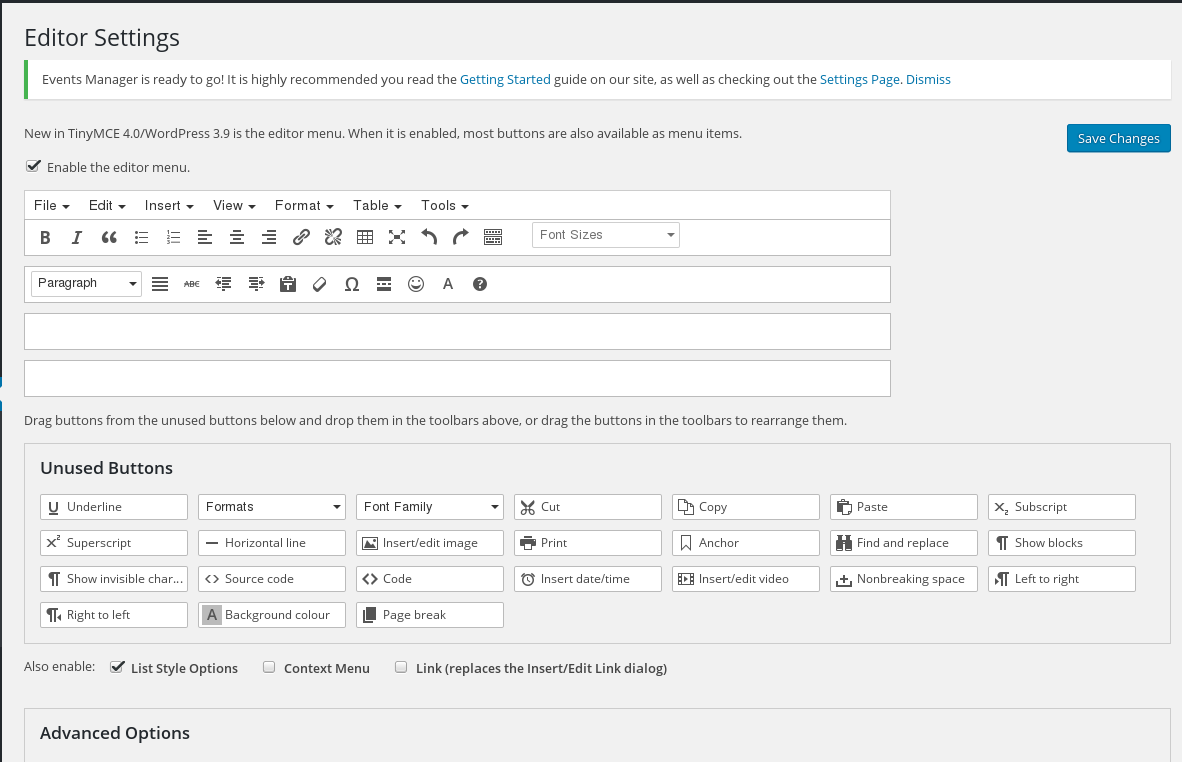
From the available options drag the Font Sizes box to one of the editor icon rows. Click on Save Changes at the top right corner.
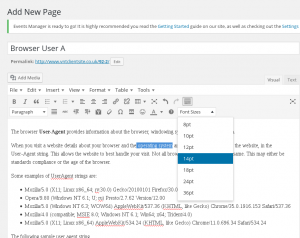
Back at the editor, editing a blog post. The font size is now showing on the icon bar.
Select a piece of text and click on the font size, making your selection. The highlighted text will now resize within the editor window.
Using the font size options offered by TinyMCE Advanced the options given are in points pt.
A potential disadvantage of setting a fixed font size is with responsive screen sizes where this may well over rule the settings of the theme designer, creating font sizes which are inappropriate for some screen sizes.
View your newly updated page or post on a number of devices, phones, desktop and tablet, to ensure that the size chosen renders well across these devices.


