WooCommerce product variations are products with additional choices. An example of a product with variations is a t-shirt in a range of colours.
The main product details, such as the product description and the product summary can be entered as normal. The variations are added as extra product detail within the product configuration.
By default, when adding a new WooCommerce product, it will be created as a Simple Product. To implement the product as a variation change the type of Variable Product.
To change the product type. Within the Product Data section of the product details expand the drop down list, titled Product Type. From this list select the item Variable product. Some of the menu items shown in the left: inventory; shipping etc. will change to reflect this choice.
Core product data details can be added, for example the SKU and stock management choices for the main product stem in the menu tabs as usual.
There are two approaches offered to creating variations: all combinations or addition of only those custom variations which are available.
Two of the menu tabs are relevant to the configuration of product variations: Attributes; and Variations. To be able to utilise the variations first the associated attributes are added. Select the Attributes tab. Variations can then be built from the attributes.
Attributes
Examples of attributes are colour, size or style.
For example to add a custom product attribute of size click on the Add button adjacent to the shown drop down list Custom product attribute.
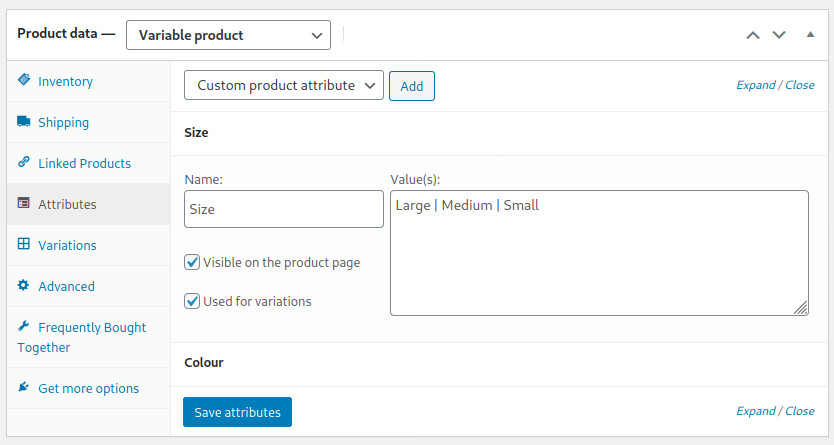
In the expanded section enter the product variation name and provide a value. As an example if the Name is given as Size, then the Value could be Large | Medium |Small
Two checkbox options are given:
- Visible on the product page: determines whether the attribute is available for view on the product page within the option additional information, if this has been configured to be visible.
- Used for variations: indicates the attribute is with respect to product variations. Tick this item.
Variations
From the left menu select the Variations item.
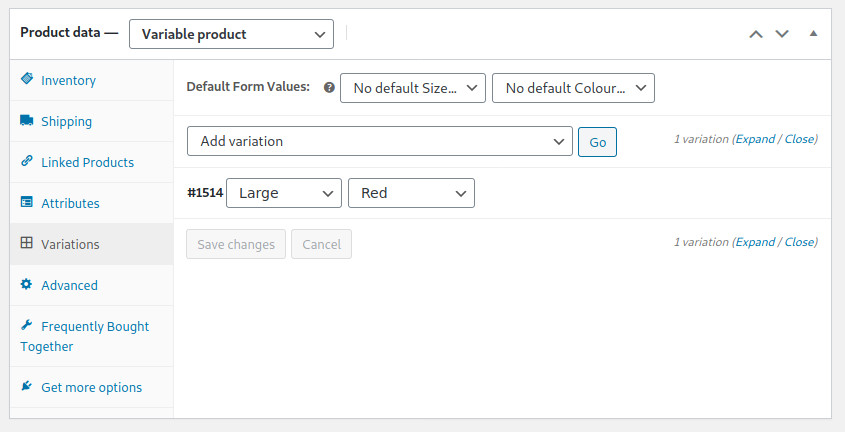
There is the option to create all variations. However this has the potential to create more product variations than supported. For example these options will produce 36 variation combinations.
- Size: large | medium | small
- Colour: red | blue | green | yellow
- Length: short | medium | long
The combinations created are similar to the variations shown below.
- large red short
- large red medium
- large red long
- large blue short
- large blue medium
- large blue long
- medium red short
- medium red medium
Each possible combination of the attributes is used to create the variations. For two items it can be manageable. But beware if 3, 4 or more attributes are available the result may be unmanageable.
You may wish to consider whether it is more efficient to create too many variations, every possible combination and to delete those which are not required.
Or you may prefer to manually create each product variation specifically.
Open the variations menu tab. If no variation has been created it will simply show the option Add variation with a button Go alongside.
Once variations exist the variation menu item shows options to set the default form values: a series of drop down lists for each of the previously created attributes, where the checkbox Used for variations is ticked.
To add a new product variation click on the Go button alongside the drop down list showing Add variation.
This will show a new variation. Expand the associated section, completing the options for SKU, price and other entries as desired.
From the dropdown list(s) of product attributes select the combination for this product variation.
There’s an option to add a single image to illustrate the product variation.
If you wish to provide more images as a gallery, akin to the main product stem, and perhaps also support for videos research the range of plugins returned for a search based upon variation image gallery. Note its possible that incorporated within the plugin is an override to the existing product image and gallery. CSS configurations may need to be changed.
Once the amendments to the variation have been completed. Click on the blue Save changes button at the bottom of the expanded variation section.
Product variations are listed according to their attribute drop down lists.
To review or edit an existing product variation click on its section to expand it.
Don’t forget to save your product changes.
Further Reading
WooCommerce variable product documentation.


