Purchasing a new Mac computer I was surprised to find that by default the Mac firewall is turned off. The Mac firewall settings are readily managed from the System Preferences.
To enable the firewall on a Mac computer begin by opening System Preferences.
To open System Preferences click on the Apple icon at the top left of the screen and select System Preference from the drop down menu.

On the top row of icons click on the icon Security & Privacy.
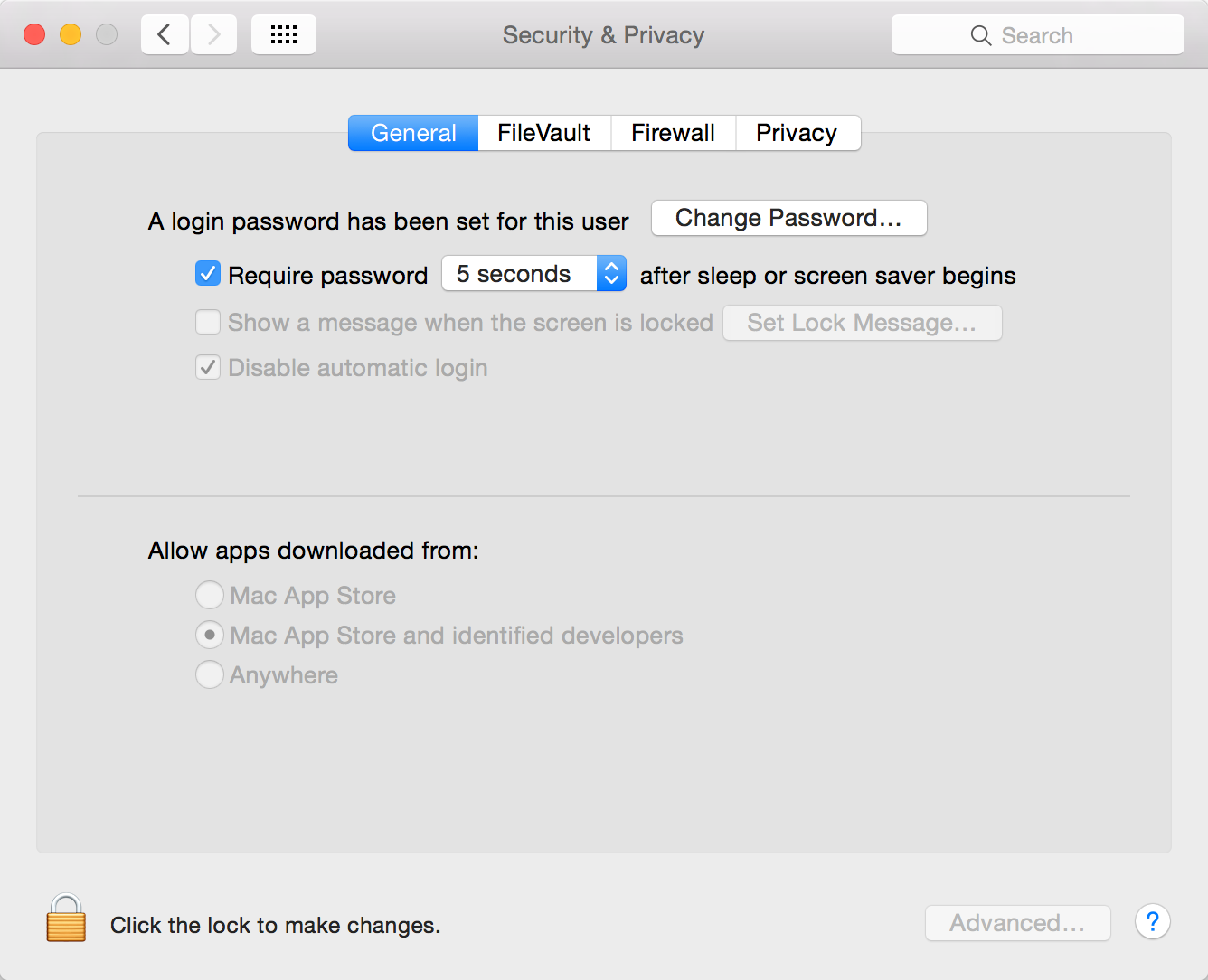
From the options at the top of the Security & Privacy window click on the Firewall tab.
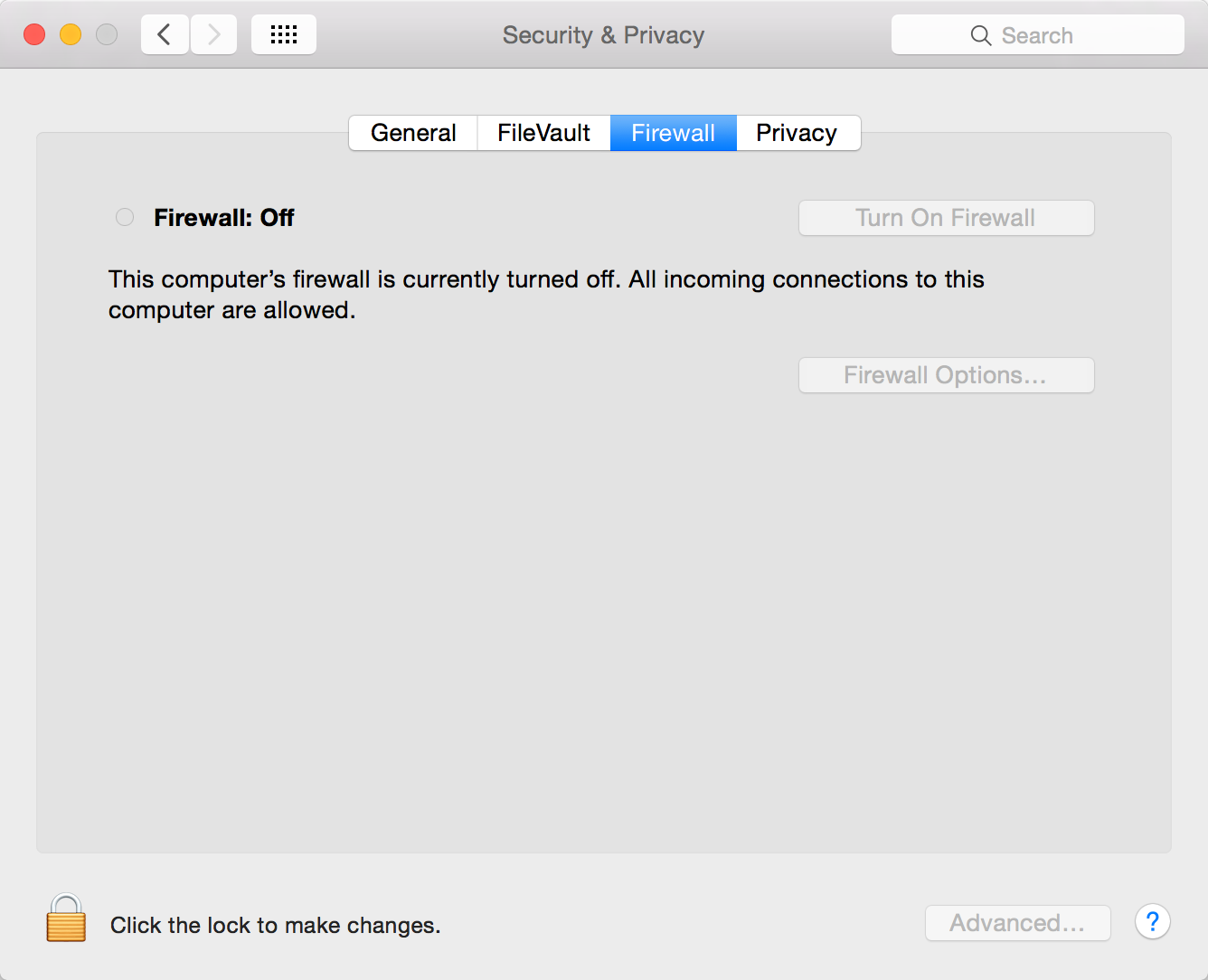
To be able to make changes to the firewall settings this window needs unlocking. To unlock this settings window click on the padlock in the bottom left corner of the window.

Enter your login details and click on Update, to unlock the firewall settings window.
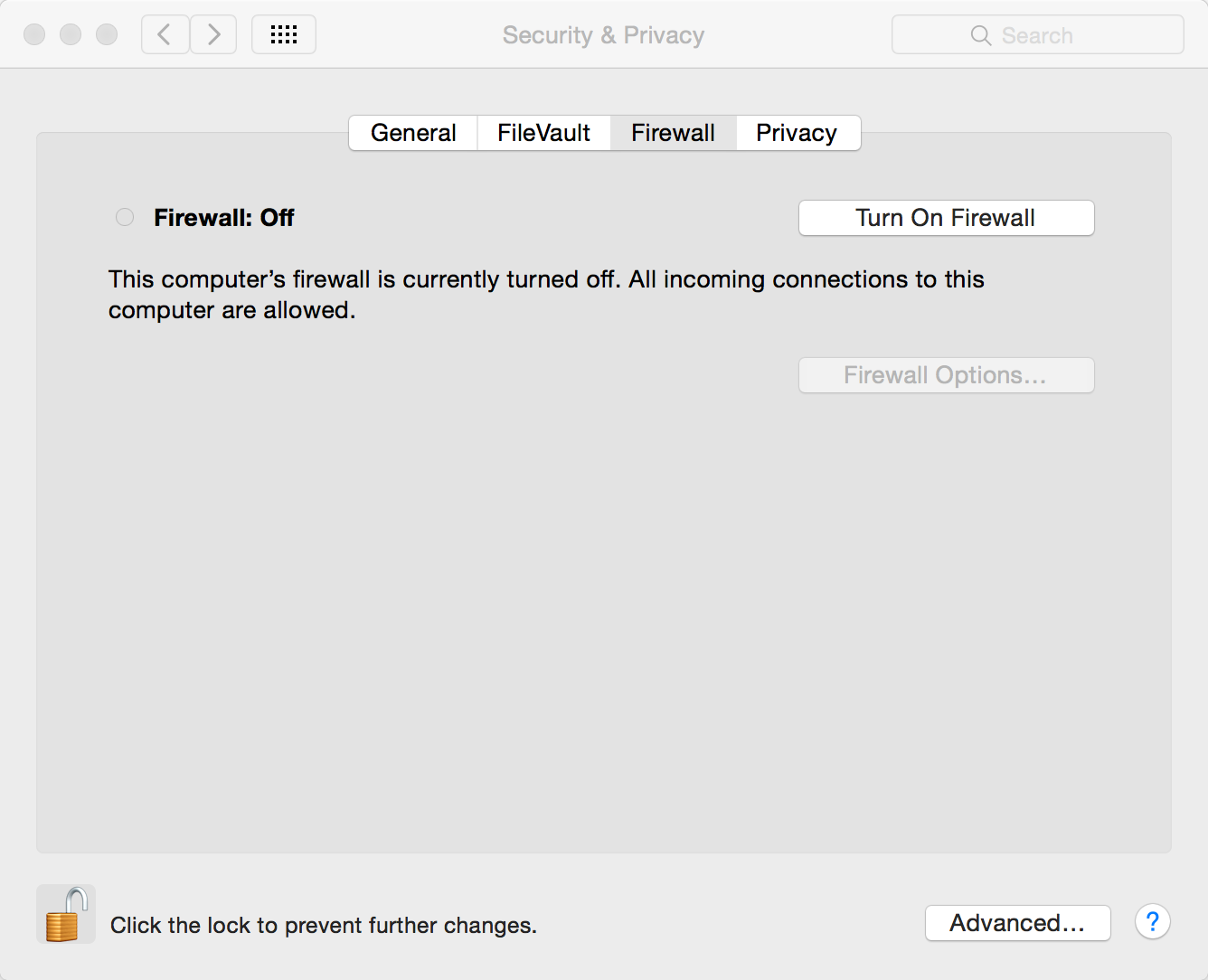
With the padlock unlocked, click on the option Turn On Firewall. The firewall on the Mac Computer is now enabled.

Having enabled the firewall you may wish to visit he advanced options.



