LinkedIn provides an API allowing connection to your account to auto post and view content.
The API can be used to auto-post content from your blog. When a new blog post is published the headline and link may be pushed to your LinedIn account activity.
To add this link between your website and Linked in requires the creation of an application, together with the associated security keys.
Begin by logging into your LinkedIn account
Go to the developers page, https://developer.linkedin.com, I found no obvious links from the accounts page.

At the top right click on the link for My Apps.

If this is the first time of creating an application the page will be empty with the message You do not have any applications.
Click on the yellow Create Application button, at the top right.
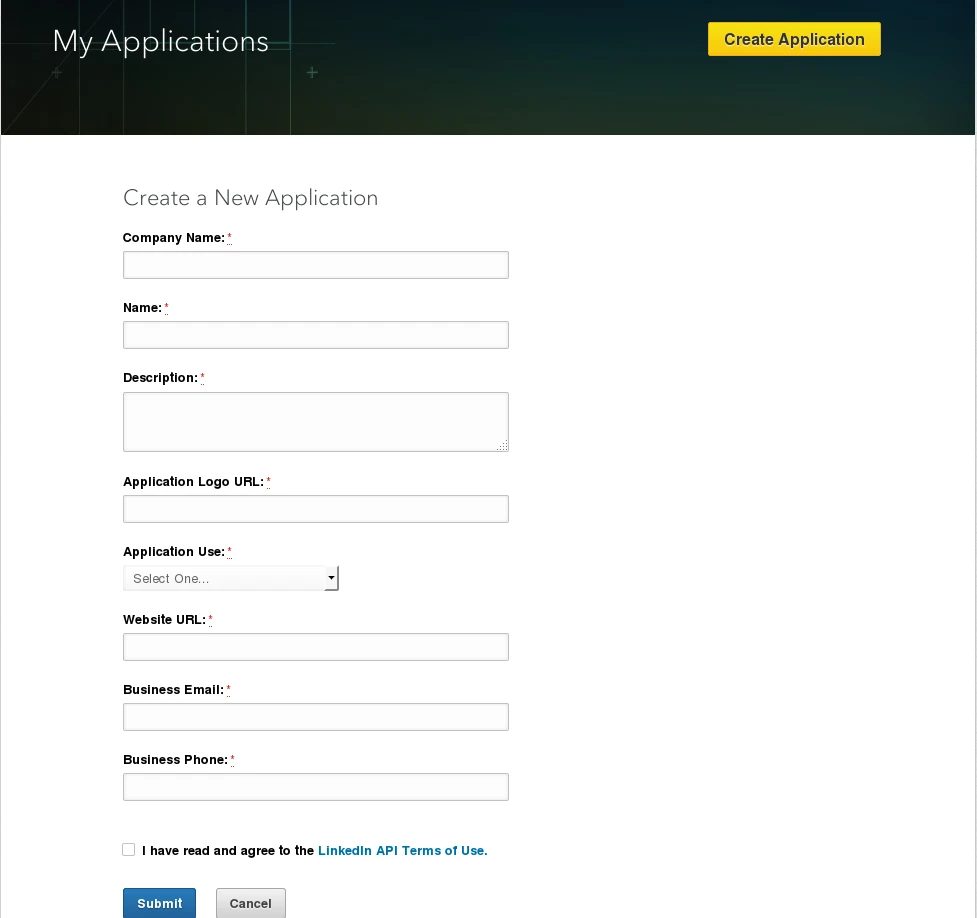
On the Create a New Application form enter your details.

Click on Submit button at the bottom of the page.
To ensure that only your programs are able to connect with your LinkedIn account an OAuth security connection is configured.
LinkedIn creates a pair of unique authentication keys to be added to your program. There is also an authentication of the connection.
The next page defines the oAuth authentication keys to be used with this application.
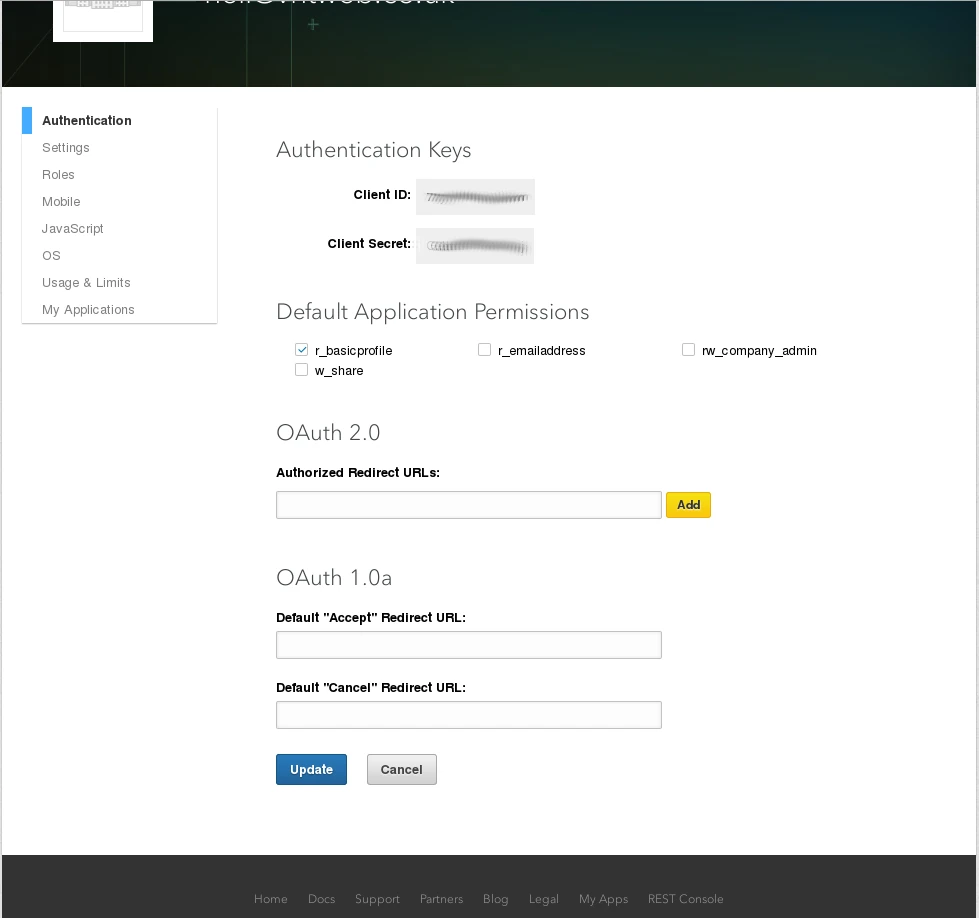
Copy these keys, Client ID and Client secret, to their associated text boxes within your program.
Click on the Update button at the bottom of the page.
The next action to take is to set the newly created application live. At the top left corner there’s a short menu. Click on Settings.

In the Application status field choose the option Live and click on Update at the bottom of the page.
Authorise the use of the program with your LinkedIn application. I have found that this is usually simply an authorise link within the program to be clicked. A dialogue is shown requesting entry of your LinkedIn account user name and password..
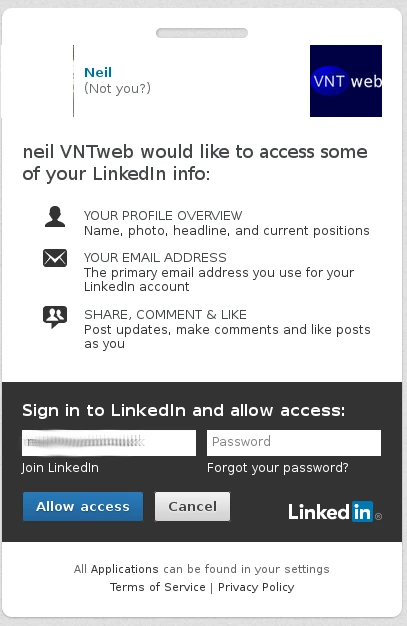
Your program can now be used to interconnect with your LinkedIn account.


