Change the setting between single and double click to open files and folders in KDE plasma desktop.
The KDE desktop allows for either a double or single click to open a file or folder.
Opening a folder with a single click is much like clicking on a link on a website.
To choose whether a single or double click will open a file or folder begin by opening the system settings.
From the menu selection in the bottom left corner of the menu bar. The system settings is often listed in the favourites section. Otherwise open the Application section and then the Settings group to find the System Settings.
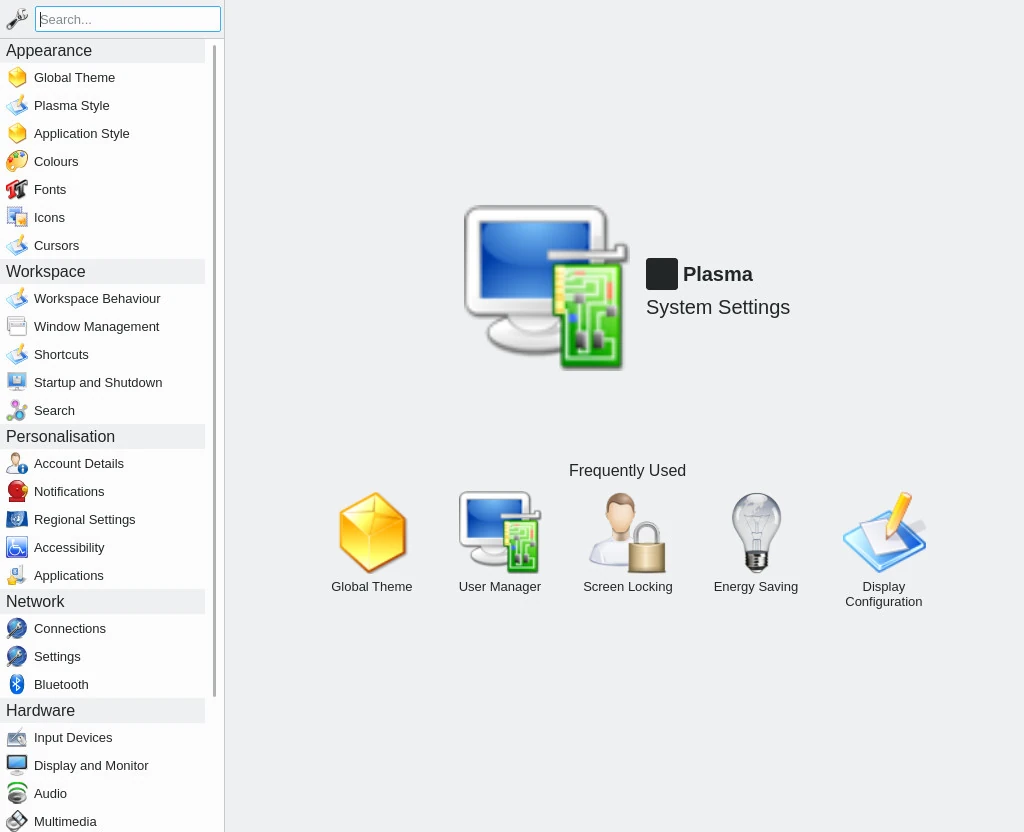
From the left menu select Workspace behaviour under the Workspace group. within this group select General Behaviour.

As shown above select the option for single or double click. Note the double click allows for a single click to select an item (file or folder).
Click on Apply in the bottom corner to finish.
Using a double click to open a folder requires a positive action.
I like to use a single click, having probably spent too much time viewing and working with websites.
One problem which I have found with the single click option is selecting files to move to a directory. So easy to open the file rather than selecting.
To select a file I scoop it up. Start within clear space and drag the mouse with the left key pressed to encompass one or more files for selection. If you need to add more files further up or down hold down the ctrl key and either select individual or multiple additional items.