How to change the password on a Window 10 local account, given that the old password is not known. But it’s possible to login to the computer using either the PIN or finger print reader.
The dialogue to change the user password requires the old password to be entered first, then the two fields for the new password, with it’s confirmation box.
If you don’t know the old password there are software options to gain access to the computer and make changes. However, as access is available here’s a couple of options:
- additional administrator account
- command line based
When looking to reset the password the dialogue requires knowledge of the old password.
Fortunately the PIN was known, also the finger print reader was working too! But I wished to have the password available.
Did consider creating a new administrator account to set then login and set the password. But wanted something simpler and with less overhead.
Here’s the actions I took, using the Windows command line.

If you have the search box in the bottom toolbar you can type cmd here. Tthe black dialogue box will popup for you to make your selections.
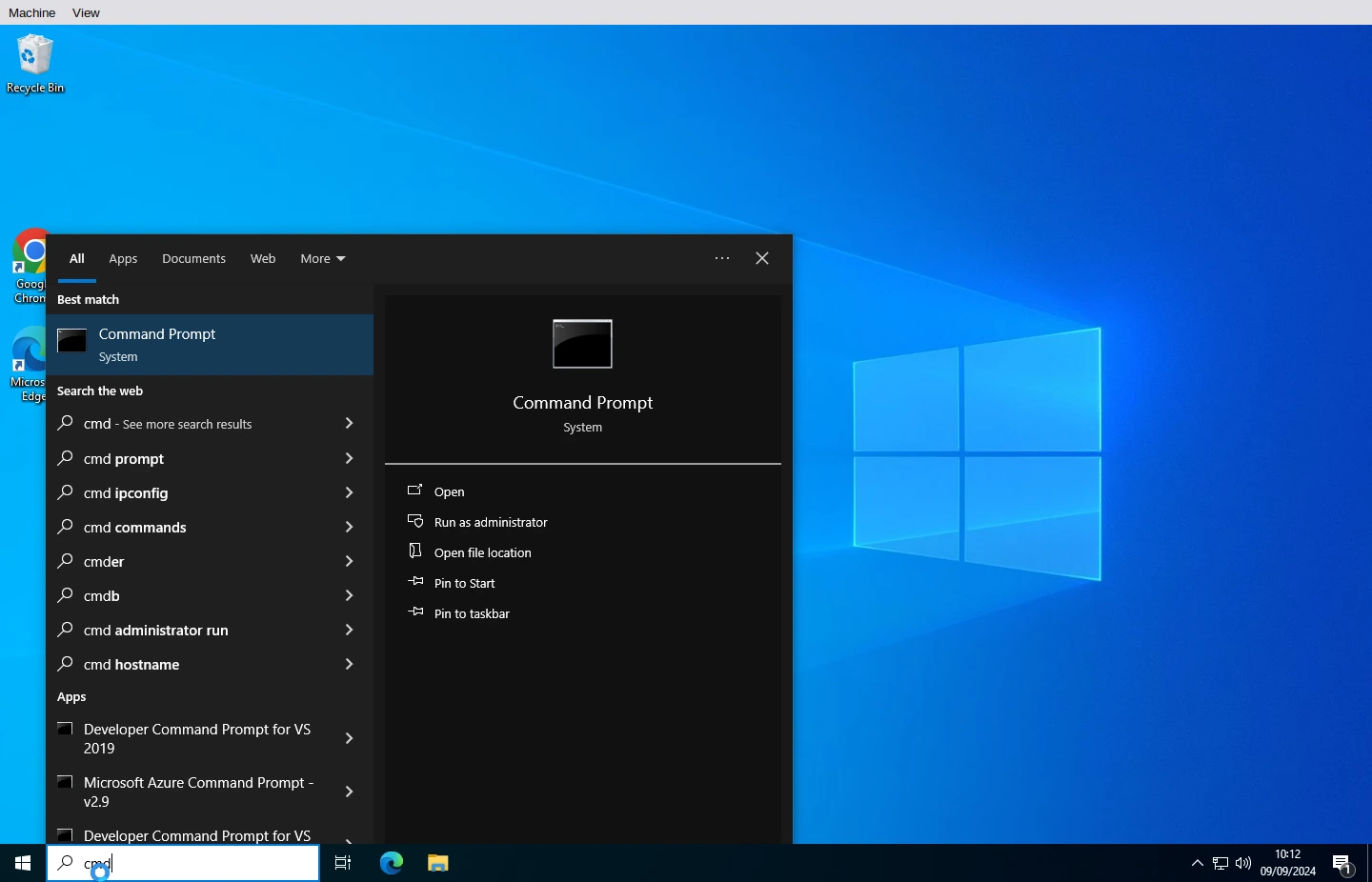
Alternatively click on the windows icon in the bottom left corner of the control bar. type CMD. This shows the same black dialogue box.
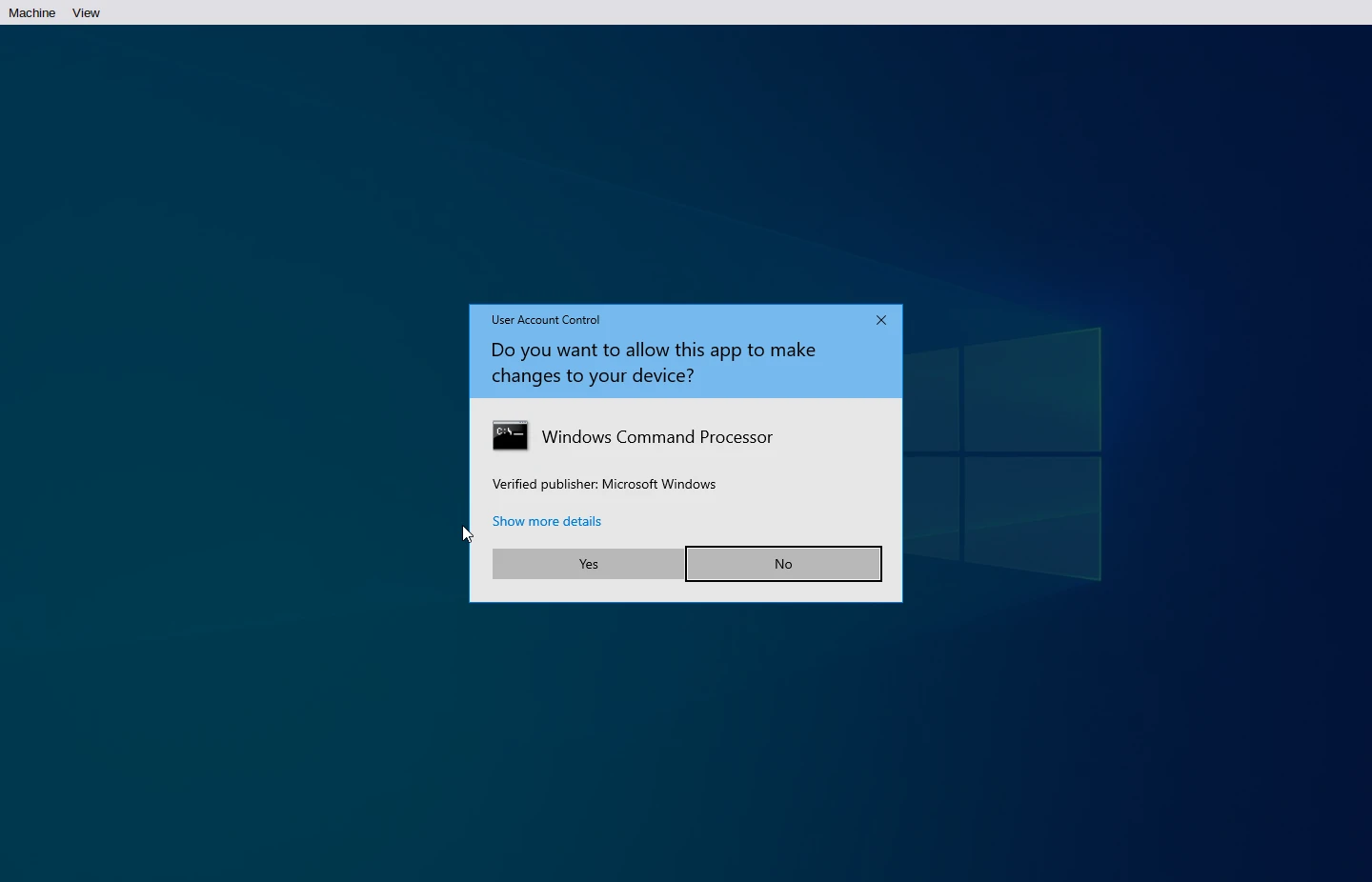
Click on the option to run as administrator. A popup dialogue box will open asking if you are happy for the app (cmd) to make changes to the computer. Click on the Yes button.
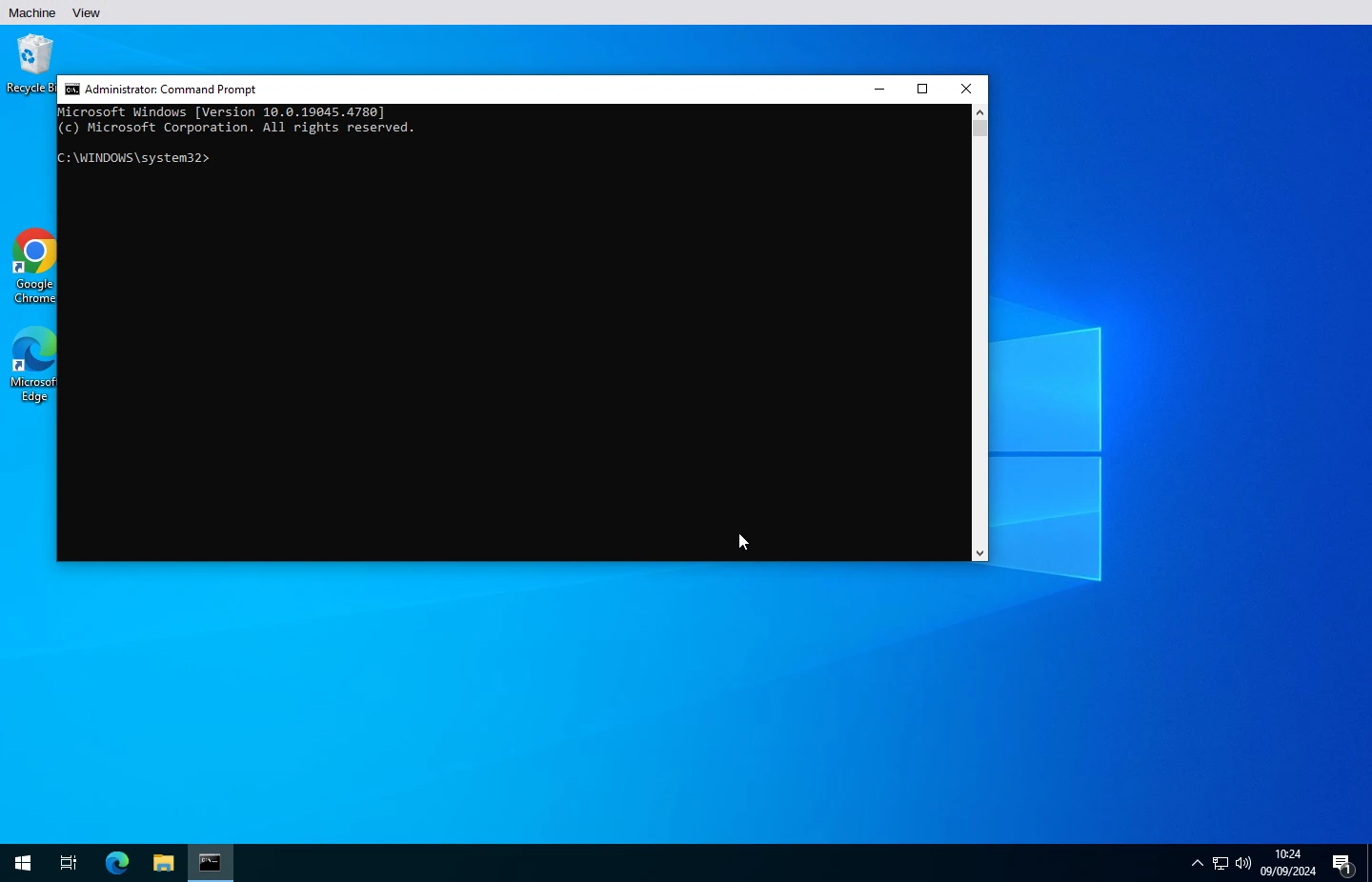
The command prompt window will open.

The command to enter is:
net user [username] [password]
In the above [username] is the user which you wish to change the password for and [password] is the new password
Pick a simple to use password. Best to avoid potential issues with characters at the command prompt at this stage.

Now to return to the change password dialogue and enter a better password with mixed characters.
Click on the Windows logo in the bottom left hand corner.

In the popup settings window click on the Accounts option.

On the left-hand grey menu click Sign-in options.

Click on Password and then the Change button

The password which you created earlier is entered here

Enter your choice of new password, and a second time to confirm. I like to do this manually, not using copy and paste. There is less chance that I have entered the wrong characters, from those intended.

As a check on the password which you have entered maybe revisit the start of the password change dialogue once more.


