A website domain can be registered, for example with 123-reg, and then the technical part of the domain can be split off to put the hosting functions, eg. website and email on different servers.
If you have a design agency or developer looking after your website you can retain ownership of your domain and pass over the technical configuration, allowing them to make hosting configuration changes as required without disturbing you.
To pass over the technical part of the domain the setting to be changed is the nameservers.
Its a simple value change to make, but do ensure that the values you are going to insert are correct. If you get it wrong the values can be changed again – but its likely that your email and website will be unavailable.
It’s quite possible that other changes will be made at this time too, for example the website and email hosting.
There will be a time of uncertainty whilst some devices on the Internet will be utilising both the old hosting servers (website and mailbox) and the new. It’s best to coordinate the change with your technical support to mitigate the transition time.
Ask your technical support for he new values. They will look something like
ns1.stackdns.com, ns2.stackdns.com, ns3.stackdns.com, ns4.stackdns.com
or
ns.heartinternet.co.uk, ns2.heartinternet.co.uk
Moving your nameserers from 123-reg to another hosting company is easy to do.
Not unsurprisingly – start by logging into your 123-reg control panel.
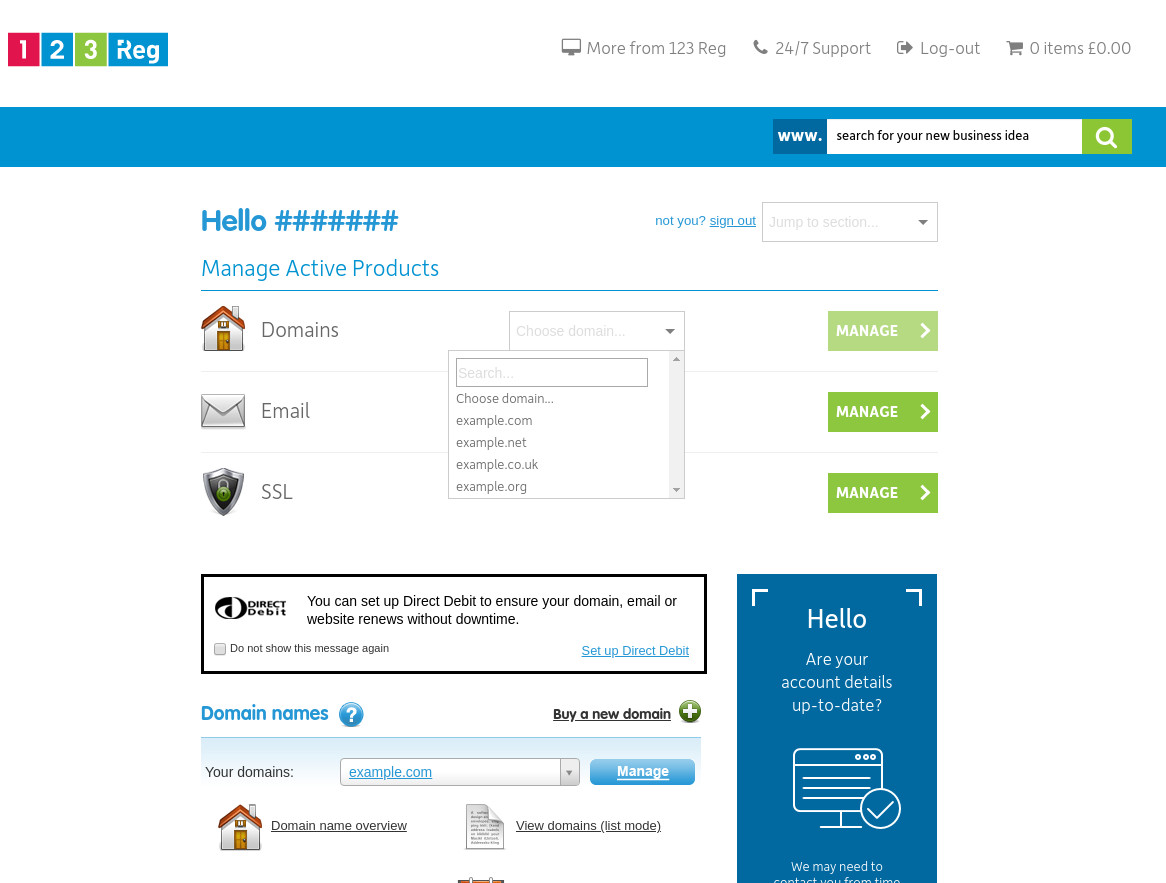
From the control panel view of the active products, from the domains list at the top select the one to be modified. Click on the green Manage link button to the right.
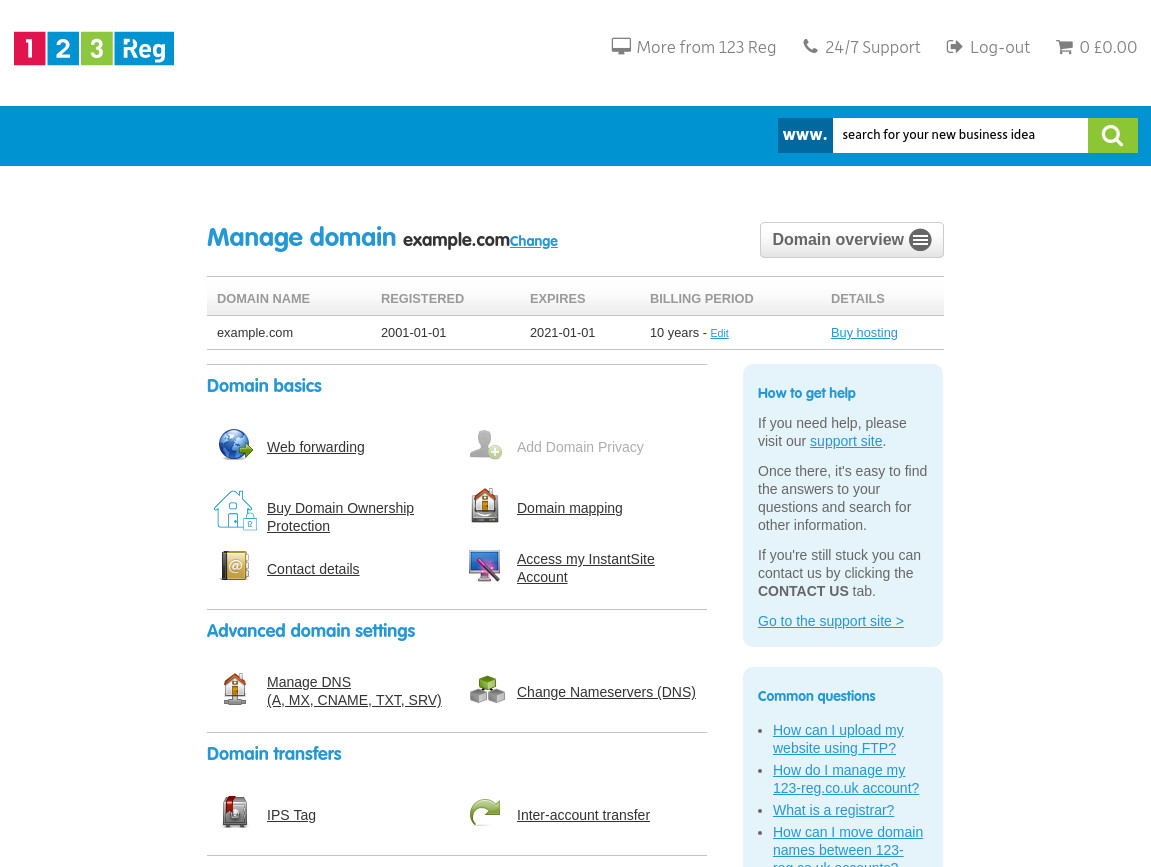
On the follow-on Manage Domain page scroll down to show the Advanced domain settings section.
Within this section click on the option to Change Nameservers (DNS).
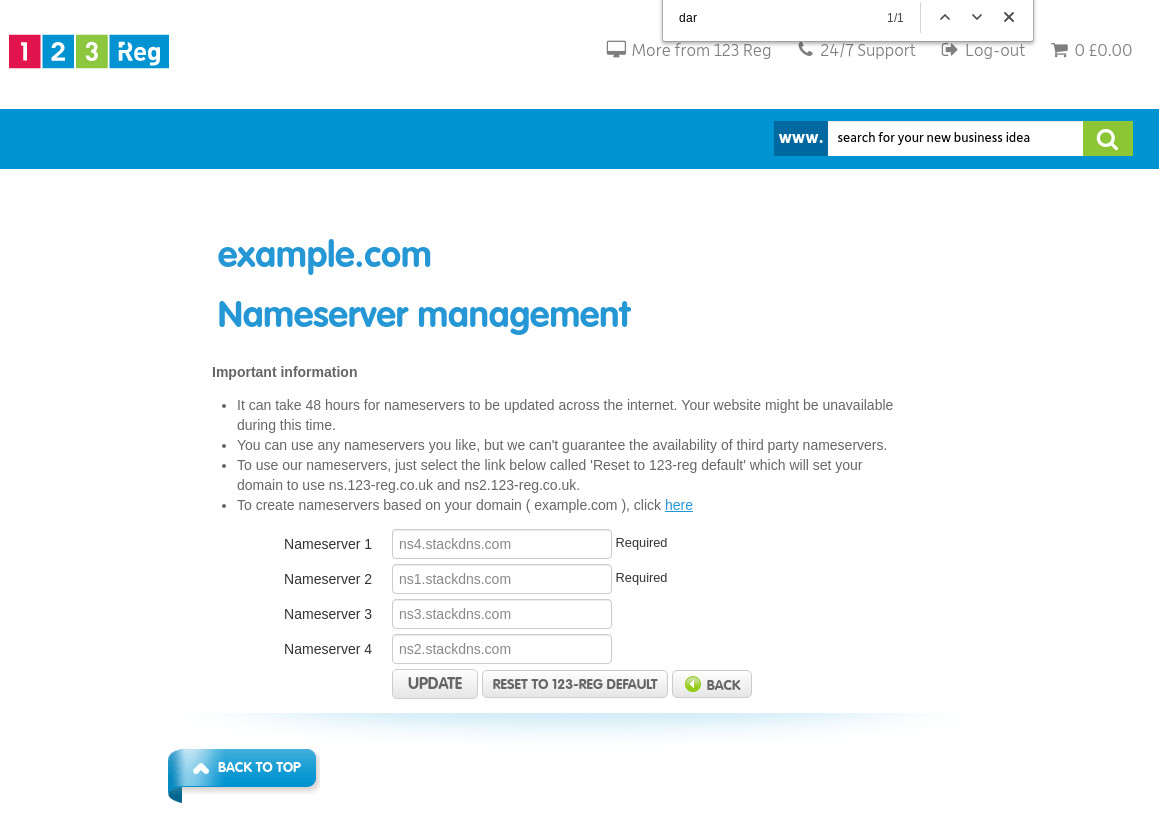
On the Nameserver management page enter the values which you have been given in the text boxes for nameserer 1 to 4. Its possible you may only have been given two values.
Click on Update to activate your changes.


